


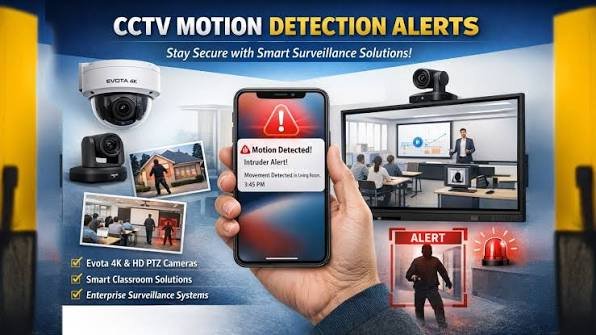
NVR Configuration, Recording Settings, Motion Detection, AI Features & Cloud Storage – 2026
Connecting an IP Camera to an NVR
NVR Configuration: Once the camera’s network settings are configured, the next step is integrating it with the Network Video Recorder (NVR).
Automatic Camera Search
Most modern NVRs automatically scan the local network.
Steps:
- Open Camera Management.
- Click Search.
- Select the discovered camera.
- Enter the camera credentials if prompted.
- Click Add.
- Verify the camera status changes to Online.
Adding a Camera Manually
If automatic discovery does not work:
- Open Manual Add.
- Enter the camera IP address.
- Specify the communication port.
- Select the correct protocol (such as ONVIF if required).
- Enter the username and password.
- Save the settings and confirm the camera connects successfully.
Camera Management
The NVR camera management screen typically displays:
- Camera Name
- IP Address
- Channel Number
- Online/Offline Status
- Resolution
- Bitrate
- Firmware Version
- Recording Status
Assign clear names such as:
- Front Gate
- Reception
- Warehouse
- Parking Area
- Office Entrance
Descriptive names simplify maintenance and playback.
Recording Configuration
Navigate to:
Storage → Recording Schedule
Common recording options include:
Continuous Recording
The camera records 24 hours a day.
Suitable for:
- Banks
- Warehouses
- Retail stores
- Factories
Motion Recording
Recording starts only when motion is detected.
Advantages:
- Saves storage space
- Faster event searches
- Reduced unnecessary footage
Scheduled Recording
Recording occurs only during selected time periods.
Example:
- 8:00 PM – 7:00 AM
Useful for offices, schools, and businesses.
Event Recording
Recording begins when a defined event occurs, such as:
- Motion detection
- Line crossing
- Intrusion detection
- Alarm input
- Human detection
- Vehicle detection
Recording Resolution
Recommended settings:
| Camera Resolution | Recording Quality |
|---|---|
| 2MP | Full HD |
| 4MP | Very High |
| 5MP | Professional |
| 8MP (4K) | Ultra HD |
Select a resolution appropriate for your storage capacity and monitoring requirements.
Recording Frame Rate
Typical recommendations:
| Environment | FPS |
|---|---|
| Home | 20–25 |
| Office | 20–25 |
| Parking | 25–30 |
| Industrial Site | 20–25 |
Motion Detection Setup
Motion detection is one of the most useful CCTV features.
Navigate to:
Events → Motion Detection
Adjust:
- Sensitivity
- Detection Area
- Recording Duration
- Notification Options
Motion Detection Sensitivity
Suggested starting points:
| Environment | Sensitivity |
|---|---|
| Home | Medium |
| Office | Medium |
| Outdoor | Low–Medium |
| Warehouse | Medium–High |
Fine-tune sensitivity to reduce false alerts caused by rain, insects, or moving vegetation.
Detection Zones
Instead of monitoring the entire image, define specific regions.
Example:
Monitor:
- Doorways
- Gates
- Cash Counters
- Parking Entrances
Ignore:
- Busy roads
- Trees
- Public walkways (where appropriate)
This improves alert relevance.
AI Smart Detection
Many modern IP cameras include AI-assisted analytics.
Common features include:
Human Detection
Filters alerts to people, reducing notifications from animals or environmental movement.
Vehicle Detection
Detects cars, motorcycles, vans, buses, and trucks.
Ideal for:
- Parking lots
- Commercial properties
- Gated communities
Face Detection
Captures images when a face appears within the configured area.
Used in:
- Offices
- Schools
- Apartment entrances
Line Crossing Detection
Creates a virtual line. An event is generated when someone crosses it in the configured direction.
Useful for:
- Restricted areas
- Building entrances
- Perimeter monitoring
Intrusion Detection
Defines a virtual area. Alerts are generated when a person or vehicle enters or remains within that area.
Suitable for:
- Warehouses
- Server rooms
- Private compounds
Object Left Behind
Detects unattended objects left within a monitored area.
Common locations:
- Airports
- Shopping centres
- Public buildings
Object Removal Detection
Generates alerts when designated objects disappear from the scene.
Examples:
- Artwork
- Display items
- Equipment
- Inventory
Privacy Mask
Privacy masks block selected parts of the camera image.
Typical applications:
- Neighbouring windows
- Private gardens
- Computer screens
- Sensitive work areas
This helps protect privacy while maintaining surveillance coverage.
Image Enhancement
Optimise image quality using:
- Brightness
- Contrast
- Saturation
- Sharpness
- Gamma
- White Balance
- Wide Dynamic Range (WDR)
- Backlight Compensation (BLC)
- Highlight Compensation (HLC)
- Digital Noise Reduction (DNR)
Adjust settings according to the lighting conditions at the installation site.
Night Vision Settings
Most IP cameras automatically switch between day and night modes.
Common options:
Smart IR
Automatically adjusts infrared illumination to prevent overexposure of nearby subjects.
IR Distance
Select the range appropriate for the installation.
Examples:
- 20 metres
- 30 metres
- 50 metres
- 80 metres
Colour Night Vision
Some cameras use white LEDs to provide full-colour images in low light.
Audio Configuration
If your camera includes audio capabilities:
Enable:
- Microphone
- Speaker (if available)
- Audio Recording
- Two-Way Audio (if supported)
Verify local laws regarding audio recording before enabling it.
Hard Drive Installation
Choose surveillance-grade hard drives designed for continuous operation.
Recommended capacities:
| Cameras | Suggested Capacity |
|---|---|
| 4 | 2–4 TB |
| 8 | 4–8 TB |
| 16 | 8–12 TB |
| 32 | 12–20 TB |
Capacity requirements vary depending on resolution, recording schedule, and retention period.
Storage Management
Most NVRs display:
- Total Capacity
- Used Space
- Available Space
- Health Status
- Temperature
- SMART Information (if supported)
Regularly review storage health to avoid unexpected failures.
Overwrite Recording
Enable automatic overwrite (loop recording) so the oldest footage is replaced when storage becomes full.
This helps maintain continuous recording without manual intervention.
Cloud Storage Setup
Many manufacturers offer optional cloud storage services.
Typical setup:
- Create a cloud account.
- Link the camera or NVR.
- Select a storage plan (if required).
- Choose recording preferences.
- Test playback and uploads.
Cloud storage provides off-site redundancy but may involve subscription costs.
NAS Storage Configuration
Many IP cameras support recording directly to a Network Attached Storage (NAS) device.
General steps:
- Configure the NAS share.
- Enter the NAS address in the camera settings.
- Provide the required credentials.
- Test recording.
- Verify playback.
NAS is commonly used for larger installations requiring centralised storage.
Email Alert Configuration
Many cameras can send email alerts for selected events.
Typical events:
- Motion detection
- Human detection
- Vehicle detection
- Video loss
- Storage failure
- Camera offline
Configure:
- SMTP server
- Sender address
- Recipient address
- Authentication details
Test notifications after configuration.
Push Notifications
Enable push notifications through the manufacturer’s official mobile application.
Typical notifications include:
- Motion detected
- Human detected
- Vehicle detected
- Camera offline
- Storage full
- Device tampering
Adjust notification schedules to avoid unnecessary alerts.
Backup & Export Recordings
Regular backups help preserve important evidence.
Common export formats include:
- MP4
- AVI
- Native recording formats (depending on manufacturer)
You can usually export recordings to:
- USB flash drive
- External hard drive
- NAS
- Network location
Verify exported files play correctly before deleting any original footage.
Maintenance Tips
- Check camera lenses regularly and clean them when necessary.
- Inspect outdoor housings for water or dust ingress.
- Verify recording schedules after firmware updates.
- Test motion detection periodically.
- Review available storage space.
- Confirm all cameras remain online.
FAQs
NVR Configuration FAQs
1. What is an NVR?
An NVR (Network Video Recorder) records video from IP cameras over a network.
2. Can an NVR work without the internet?
Yes, it can record and manage cameras on a local network without internet access.
3. How do I add an IP camera to an NVR?
Use the NVR’s device search feature or manually enter the camera’s IP address and credentials.
4. Why can’t my NVR detect the camera?
Check the network connection, IP settings, ONVIF compatibility, and login credentials.
5. Can I connect different brands of IP cameras to one NVR?
Yes, if both support compatible protocols such as ONVIF.
6. How many cameras can one NVR support?
Common models support 4, 8, 16, 32, or more channels.
7. Should every camera have a unique name?
Yes, descriptive names make monitoring and playback easier.
8. Can I rearrange camera channel numbers?
Most NVRs allow channel reordering or renaming.
9. What does an offline camera status mean?
The NVR cannot communicate with the camera.
10. Can an NVR update camera firmware?
Some models support firmware updates for compatible cameras.
Recording Configuration FAQs
11. What is continuous recording?
The camera records 24 hours a day.
12. What is motion recording?
Recording starts only when motion is detected.
13. What is scheduled recording?
Recording occurs only during selected times.
14. Which recording mode is best?
It depends on your storage capacity and surveillance needs.
15. Does continuous recording consume more storage?
Yes.
16. Does motion recording save hard drive space?
Yes, significantly in many environments.
17. Can I combine recording modes?
Many systems allow different schedules and event-based recording.
18. Can I record only at night?
Yes, using a recording schedule.
19. Can each camera have a different recording schedule?
Yes.
20. Can recording continue during internet failure?
Yes, if the NVR is recording locally.
Motion Detection FAQs
21. What is motion detection?
A feature that triggers recording or alerts when movement is detected.
22. Can I adjust motion sensitivity?
Yes.
23. Why am I receiving too many alerts?
Sensitivity may be too high or detection zones may need adjustment.
24. Can I ignore moving trees?
Yes, by adjusting detection areas and sensitivity.
25. What is a detection zone?
A selected area where motion is monitored.
26. Can I monitor only the entrance?
Yes.
27. Does rain trigger motion alerts?
It can, depending on sensitivity and camera settings.
28. Can insects trigger motion detection?
Yes, especially near infrared LEDs at night.
29. Can motion detection send notifications?
Yes.
30. Does motion detection reduce storage usage?
Yes.
AI Smart Detection FAQs
31. What is AI detection?
Artificial Intelligence that recognises people, vehicles, and specific events.
32. What is human detection?
A feature that identifies people and reduces false alarms.
33. What is vehicle detection?
Detection of cars, motorcycles, buses, trucks, and similar vehicles.
34. What is face detection?
A feature that detects when a face appears in the camera’s view.
35. What is line crossing detection?
An alert generated when someone crosses a virtual line.
36. What is intrusion detection?
Detection of entry into a defined virtual area.
37. What is object removal detection?
An alert when a monitored object disappears.
38. What is unattended object detection?
Detection of objects left behind in a monitored area.
39. Can AI reduce false alarms?
Yes, compared with standard motion detection.
40. Do all cameras include AI features?
No.
Image Quality FAQs
41. What is WDR?
Wide Dynamic Range improves image quality in challenging lighting.
42. What is BLC?
Backlight Compensation improves visibility when strong light is behind the subject.
43. What is HLC?
Highlight Compensation reduces glare from bright lights.
44. What is DNR?
Digital Noise Reduction improves image quality in low-light conditions.
45. Should brightness be adjusted?
Only if the default image is unsuitable for the environment.
46. What is white balance?
A setting that keeps colours looking natural.
47. Why is my image too dark?
Lighting, exposure, or incorrect camera settings may be the cause.
48. Can image quality be improved without replacing the camera?
Often yes, by adjusting image settings.
49. What is image sharpening?
A feature that enhances edge definition.
50. Can excessive sharpening reduce image quality?
Yes, it may introduce unwanted artefacts.
Night Vision FAQs
51. What is infrared (IR) night vision?
Infrared LEDs allow the camera to capture images in darkness.
52. What is Smart IR?
A feature that automatically adjusts infrared intensity.
53. Why is my night image blurry?
Possible causes include dirty lenses, focus issues, or incorrect IR settings.
54. Can I increase IR distance?
Only within the camera’s supported range.
55. What is colour night vision?
Low-light imaging using white LEDs or highly sensitive sensors to capture colour images.
56. Why do insects appear at night?
Infrared LEDs can attract insects.
57. Does fog affect night vision?
Yes.
58. Can rain reduce image quality?
Yes.
59. Can headlights affect the camera?
Yes, though WDR and HLC can help.
60. Does Smart IR improve face visibility?
Yes, especially at close distances.
Storage FAQs
61. What hard drive should I use?
A surveillance-grade hard drive designed for continuous recording.
62. Can SSDs be used?
Some systems support them, but surveillance HDDs are generally preferred for large-capacity continuous recording.
63. What is overwrite recording?
Automatic replacement of the oldest recordings when storage becomes full.
64. Can I disable overwrite?
Yes, though recording will stop once storage is full.
65. How much storage do I need?
It depends on the number of cameras, resolution, frame rate, and recording schedule.
66. Can I install multiple hard drives?
Many NVRs support multiple drives.
67. What is SMART monitoring?
A feature that reports hard drive health.
68. Should I monitor storage health?
Yes.
69. Can I replace a full hard drive?
Yes.
70. Can recordings be copied to another drive?
Yes.
Cloud & NAS FAQs
71. What is cloud storage?
Off-site storage of recordings via the internet.
72. Is cloud storage mandatory?
No.
73. Does cloud storage require a subscription?
Many services do.
74. Can I use NAS instead of cloud storage?
Yes.
75. What is NAS?
Network Attached Storage.
76. Can multiple cameras record to one NAS?
Yes.
77. Is NAS faster than cloud storage?
For local networks, it often provides faster access.
78. Can NAS work without internet?
Yes.
79. Should I back up important recordings?
Yes.
80. Can cloud and NAS be used together?
Yes.
Notifications & Alerts FAQs
81. Can cameras send email alerts?
Yes.
82. What events can trigger email alerts?
Motion, AI events, storage issues, camera offline status, and more.
83. Can I receive push notifications on my phone?
Yes.
84. Can notifications include snapshots?
Many systems support this feature.
85. Can I disable notifications during office hours?
Yes, using schedules.
86. Why am I receiving too many alerts?
Review detection settings and schedules.
87. Can alerts be sent to multiple users?
Yes, on many systems.
88. Can notifications include video clips?
Some cloud services support this.
89. Can I test email settings?
Yes.
90. Should notification settings be reviewed regularly?
Yes.
Backup & Maintenance FAQs
91. How do I export recordings?
Use the NVR’s backup function to copy footage to a USB drive or other storage device.
92. What file formats are commonly used?
MP4, AVI, or manufacturer-specific formats.
93. Should I clean camera lenses?
Yes.
94. How often should maintenance be performed?
Every 3–6 months, or more frequently in demanding environments.
95. Should firmware updates be checked regularly?
Yes.
96. Can dust affect image quality?
Yes.
97. Should outdoor camera housings be inspected?
Yes.
98. Why should recordings be tested?
To ensure the system is functioning correctly.
99. Can CCTV systems be expanded later?
Yes, provided the NVR, storage, and network support additional cameras.
100. What is the best way to maintain an IP CCTV system?
Keep firmware updated, monitor storage health, clean cameras regularly, verify recording schedules, test alerts, review user accounts, and inspect the network periodically to ensure reliable operation.