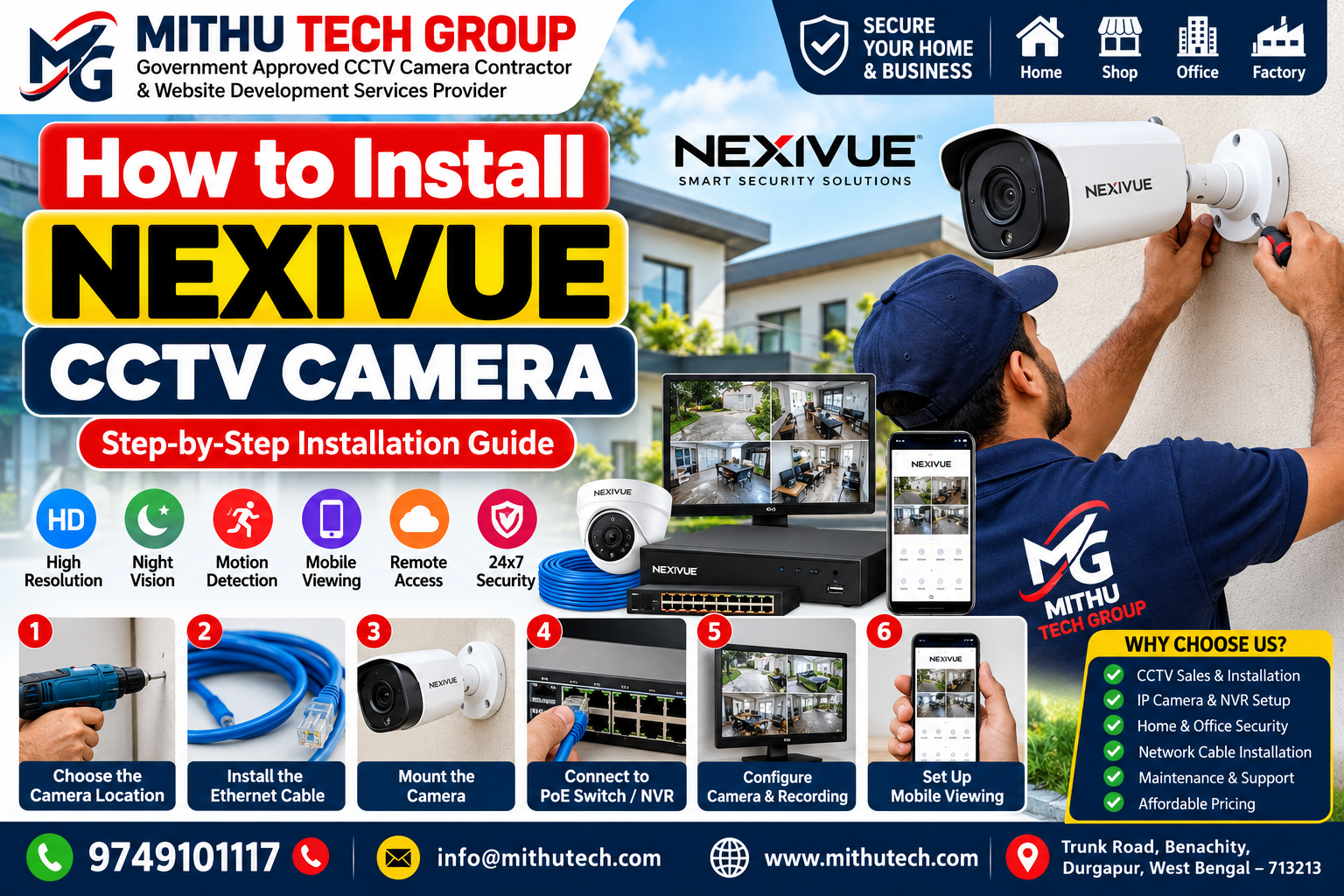
NEXIVUE CCTV Camera: Installing a CCTV camera correctly is essential for obtaining clear video footage, reliable recording and convenient security monitoring. Whether you want to protect your home, shop, office, warehouse or commercial property, understanding the installation process can help you avoid common mistakes and build a more reliable surveillance system.
This comprehensive guide explains how to install a NEXIVUE CCTV camera, prepare the necessary equipment, connect an IP camera to a network, configure an NVR, set up recording, troubleshoot installation problems and improve CCTV security.
Article by: Mithu Tech Group
Introduction: Why Proper NEXIVUE CCTV Camera Installation Matters
Security is an important consideration for homeowners, shopkeepers, property owners, office managers and business operators. A properly planned CCTV system can help monitor entrances, record activity around a building and provide video evidence when an incident needs to be investigated.
However, purchasing a CCTV camera is only the first step. The quality of the installation determines whether the camera captures useful footage, remains connected to the network and records video when required.
NEXIVUE CCTV cameras should be installed according to the specifications of the particular model. Depending on the product, the installation may involve an IP network connection, a compatible PoE switch, an NVR, a separate power supply or a supported mobile application.
This guide explains the general installation process in practical terms. Since camera models can differ in their power requirements, network compatibility and software features, always consult the documentation supplied with your particular device before connecting it.
If you are looking for professional CCTV installation services, visit Mithu Tech Group to learn more about CCTV camera installation and related security solutions.
1. What Is a NEXIVUE CCTV Camera?
A CCTV camera is a surveillance device that captures video of a selected area. Modern IP CCTV cameras transmit digital video through a network, allowing compatible recording equipment or software to receive and store the footage.
Depending on the specific model, a NEXIVUE camera may offer features such as:
- Digital video monitoring.
- Network connectivity.
- Infrared night vision.
- Motion detection.
- Remote viewing through compatible software.
- Integration with compatible recording equipment.
- High-definition video capture.
These features should not be assumed to exist on every model. Before installation, check the manufacturer’s product documentation for the exact specifications.
Understanding IP CCTV Cameras
An Internet Protocol camera, commonly called an IP camera, transmits digital video over a network connection.
Unlike traditional analogue CCTV systems that commonly use coaxial cable and a DVR, an IP surveillance system can use Ethernet networking and a Network Video Recorder.
This arrangement can simplify the management of multiple cameras, particularly in shops, offices, residential buildings and warehouses.
What Is an NVR?
A Network Video Recorder, or NVR, receives compatible network video streams and stores recordings on a hard disk or supported storage device.
An NVR can be useful when you need to manage multiple cameras from one location, review recorded footage and configure recording schedules.
Before purchasing an NVR, confirm the number of supported channels, network bandwidth, storage capacity and compatibility with your cameras.
What Is Power over Ethernet?
Power over Ethernet, commonly known as PoE, allows compatible network equipment to transmit electrical power and data through a single Ethernet cable.
For a compatible CCTV installation, this can reduce the number of cables running to each camera.
However, not every IP camera supports PoE, and not every Ethernet port supplies power. Check the camera and switch specifications before making any connections.
2. Equipment Required for NEXIVUE CCTV Camera Installation
Preparing the equipment before starting work can save time and reduce installation errors.
The equipment you need depends on whether you are installing a single camera, a Wi-Fi camera or a multi-camera IP surveillance system.
Essential Equipment Checklist
1. NEXIVUE CCTV camera
Choose a model appropriate for the installation environment. Consider the required viewing distance, image quality, lighting conditions and whether the camera will be installed indoors or outdoors.
2. Ethernet cable
Compatible Cat 5e or Cat 6 Ethernet cable is commonly used for IP CCTV installations. Select the cable type according to the equipment specifications and installation environment.
3. PoE switch or compatible NVR
A PoE switch supplies power and network connectivity to compatible cameras. Alternatively, a compatible NVR with built-in PoE ports may support direct camera connections.
4. Network router
A router provides network connectivity and may provide internet access for supported remote-viewing features.
5. Surveillance hard disk
If the system uses an NVR, a compatible storage drive may be required for video recording.
6. Mounting accessories
Depending on the mounting surface, you may need screws, wall plugs, brackets and a suitable junction box.
7. Cable protection
Outdoor installations may require conduit, weather-resistant cable, protected connectors and appropriate sealing materials.
8. Computer, monitor or smartphone
Depending on the model, these devices may be needed to configure the camera, view video or manage recordings.
Before buying additional accessories, verify which items are already included with the camera or recording kit.
3. Step-by-Step Guide: How to Install NEXIVUE CCTV Camera
The following installation procedure covers a typical compatible IP CCTV system. Wi-Fi cameras and other configurations may use a different process.
Step 1: Identify the Exact Camera Model
Begin by checking the model number on the camera label, packaging or supplied documentation.
Read the installation guide and confirm:
- The camera’s power requirements.
- Whether PoE is supported.
- Whether Wi-Fi connectivity is available.
- The supported network protocols.
- Compatible recording methods.
- The correct setup application, if applicable.
- The mounting and environmental requirements.
This step is important because using instructions intended for another model can result in incorrect connections or unsuccessful configuration.
Do not assume that every NEXIVUE camera uses the same mobile application, reset procedure or network settings.
Step 2: Plan the Camera Location
Select the location before drilling holes or running cables.
For a residential property, useful positions may include the main entrance, driveway, parking area, boundary gate and secondary entrance.
For a commercial property, consider the reception area, shop entrance, billing counter, stockroom and loading area.
The best position is the one that captures useful information about the area you want to monitor.
Consider the following points:
- Is the intended area visible without obstruction?
- Will the camera capture useful details at the required distance?
- Is there enough light during the day and night?
- Could direct sunlight affect image quality?
- Can the camera be mounted securely?
- Can the lens and housing be cleaned safely?
- Does the angle unnecessarily capture a neighbour’s private space?
Whenever possible, test the camera’s approximate field of view before permanent installation.
Step 3: Prepare the Installation Site
Inspect the mounting surface and identify a safe cable route.
Check for concealed electrical wiring, water pipes and other services before drilling into a wall or ceiling.
Select mounting hardware appropriate for the material. A mounting solution suitable for concrete may not be suitable for plasterboard, sheet metal or a weak surface.
For outdoor cameras, plan how to protect the cable entry and connectors from water and physical damage.
Use appropriate access equipment and safety precautions when working at height. Electrical work and work near concealed services should be performed by qualified professionals where required.
Step 4: Install the Ethernet Cable
For a wired IP camera, measure the distance between the camera and the network equipment.
Run the Ethernet cable through a suitable protected route. Avoid crushing the cable, pulling it excessively or bending it beyond the manufacturer’s recommended limits.
Keep network cables separated from mains electrical wiring as required by applicable installation standards.
Terminate the cable using compatible connectors or structured cabling components. Test the cable before permanently mounting the camera.
For outdoor installations, choose cable and protective accessories suitable for exposure to sunlight, moisture and temperature changes.
Standard Ethernet channels commonly support lengths of up to 100 metres under the applicable cabling conditions, but the supported distance must be confirmed for the complete system.
Longer distances may require suitable network extension equipment or a different network design.
Step 5: Mount the NEXIVUE Camera
Follow the supplied mounting instructions.
Secure the mounting bracket with suitable fasteners, position the camera and adjust its viewing angle.
Avoid pointing the camera directly at a strong light source, as this may reduce the visibility of faces and other details.
For outdoor cameras, confirm the product’s environmental rating and protect connectors according to the manufacturer’s instructions.
A weather-resistant camera does not automatically make an exposed cable connection waterproof.
Once the camera is mounted, inspect the image and adjust the angle before tightening the assembly completely.
Step 6: Connect Power and Network
The correct connection method depends on the camera type.
For a compatible PoE camera, connect the Ethernet cable to a supported PoE port on the NVR or PoE switch.
For a camera that requires separate power, use only the power supply specified by the manufacturer.
For a Wi-Fi camera, connect the required power supply and follow the model-specific wireless setup procedure.
Never connect a camera to an unverified power adapter or an incompatible PoE source.
Wait for the camera to complete its startup process, then check whether it appears online or indicates a network connection.
Step 7: Configure the Camera’s Network Connection
Some cameras are detected automatically by compatible recording equipment. Others require network discovery or manual configuration.
Follow the manufacturer’s instructions to identify the camera on the local network.
If manual configuration is required, check the IP address, subnet, gateway and other required settings.
Make sure the camera’s IP address does not conflict with another device.
For systems with multiple cameras, use a documented addressing plan so each device can be identified easily during maintenance.
If the camera cannot be detected, test the cable, network port and power supply before making more complex changes.
Step 8: Connect the Camera to a Compatible NVR
If you are installing a multi-camera system, open the NVR’s camera-management interface.
Depending on the model, you may need to:
- Connect a monitor to the recorder.
- Open the camera or device-management menu.
- Search for available cameras.
- Select the correct device.
- Enter the required credentials.
- Confirm the connection status.
- Check the live video feed.
When using a separate network switch, ensure the camera and recorder can communicate over the network.
Compatibility depends on the camera, recorder, firmware and supported protocols. Verify these requirements before assuming that two devices will work together.
Step 9: Adjust Video Settings
After obtaining a live image, review the available video settings.
Depending on the camera, these may include resolution, frame rate, bitrate, image orientation, exposure and night-vision settings.
Select the settings based on the surveillance objective.
For example, a camera intended to monitor a shop counter may require greater image detail at a particular distance. A camera monitoring a large open area may need a wider field of view.
Higher resolution can improve detail, but it can also increase bandwidth and storage requirements.
Test the image at different times of day to identify exposure problems, shadows, glare and other issues.
Step 10: Configure the Recording System
If your system uses an NVR, check whether the storage drive is installed and detected correctly.
A new hard disk may require initialisation through the recorder’s storage-management menu.
Warning: Formatting a disk may permanently erase existing recordings. Confirm that you do not need the stored data before proceeding.
Once the drive is ready, configure the recording schedule.
Common recording options include:
- Continuous recording.
- Motion-triggered recording.
- Scheduled recording.
The available options depend on the recording equipment.
For important security areas, decide carefully whether motion-only recording provides sufficient coverage.
After saving the settings, create a test recording and play it back. A live image alone does not confirm that recording is working.
Step 11: Configure Mobile Viewing
If the camera or NVR supports remote monitoring, follow the supplied instructions to configure the supported application.
The process may involve creating an account, scanning a device code or entering authorised connection details.
Download software only from a verified manufacturer source or an official application store.
After pairing the device, test live viewing on the local network. Then test remote access using a separate network, such as mobile data.
If remote viewing fails, check internet connectivity, account permissions and the device’s remote-access settings.
Use strong, unique passwords and enable additional authentication features when supported.
Never share camera passwords or device-pairing codes publicly.
Step 12: Test the Complete Installation
Before considering the job complete, verify that every camera works as expected.
Check live video, image clarity, camera angle, date and time, storage status, recording schedules and playback.
For systems that support remote viewing, verify that authorised users can connect successfully.
Inspect cable protection, mounting hardware and any outdoor connections.
Explain the basic operation of the system to the property owner, including how to view recordings and whom to contact if the system stops working.
4. How to Install a NEXIVUE Wi-Fi CCTV Camera
A Wi-Fi CCTV camera can be useful where installing an Ethernet cable is difficult, provided the model supports wireless connectivity.
The camera still needs a suitable power source unless its design provides another supported power option.
Begin by placing the camera near the intended location and checking the wireless signal strength.
Follow the official setup procedure to connect it to the correct Wi-Fi network. Some models may have specific requirements for wireless bands or network security settings.
After pairing the camera, test the live view and confirm that the connection remains stable.
If the signal is weak, consider moving the router, improving access-point placement or using suitable network equipment.
Avoid installing the camera at the extreme edge of wireless coverage without testing it under normal operating conditions.
Wi-Fi can simplify cabling, but a wired Ethernet connection may offer a more predictable connection for permanent surveillance installations.
5. How to Install a NEXIVUE CCTV Camera With a PoE Switch
PoE is commonly used for compatible IP CCTV cameras because it can carry data and power through a single Ethernet cable.
A typical network arrangement is:
NEXIVUE PoE-compatible camera → Ethernet cable → PoE switch → network router or compatible NVR
Before connecting the equipment, verify the camera’s PoE requirements and the switch’s supported standard.
Check the total power budget if multiple cameras share one switch. A switch may have enough ports but insufficient total power for every connected device.
Connect each camera to the correct port and label the cable at both ends.
After powering the system, check that the cameras appear online and that their video streams are stable.
PoE can simplify installation, but it does not eliminate the need for correct cable termination, network configuration and safe mounting.
6. How to Install NEXIVUE CCTV Camera Without an NVR
A dedicated NVR is not necessary for every IP camera. Depending on the model, recording may be possible through a supported memory card or compatible recording software.
If the camera supports a memory card, check the manufacturer’s instructions for supported capacity, card type and recording configuration.
After inserting a compatible card, enable the required recording mode and test playback.
Some models may also support other network recording arrangements. Confirm that the chosen software or storage system is compatible with the camera.
For larger installations, an NVR may provide easier centralised recording, user management and playback.
The right arrangement depends on the number of cameras, desired recording period, storage budget and maintenance requirements.
7. Best CCTV Camera Placement for Homes in Durgapur
Camera placement should reflect the layout of the property rather than follow a one-size-fits-all design.
Main Entrance
A camera near the main entrance can help record visitors and movement around the doorway.
Choose a position that captures useful facial detail without creating excessive glare or an obstructed view.
Boundary Gate
For properties with boundary walls, a gate-facing camera can help monitor access and vehicle movement.
Consider the width of the entrance and the distance between the camera and the area of interest.
Parking Area
Parking cameras can monitor vehicle movement and activity around parked vehicles.
Check lighting, headlight glare and the required viewing distance before selecting the camera position.
Staircases and Shared Corridors
In apartment buildings, cameras may be appropriate in common access areas, subject to applicable rules and privacy considerations.
Avoid recording inside private homes or other sensitive spaces.
Shops and Offices
Businesses may need coverage of entrances, reception areas, billing counters and storage areas.
Camera angles should reflect the activity that needs to be recorded.
For additional home-security guidance, read our related article on Home CCTV Camera Installation in Durgapur.
8. Common NEXIVUE CCTV Camera Problems and Their Solutions
Camera Is Not Turning On
Possible causes include a faulty cable, incompatible power supply or insufficient PoE power.
Check the power source, connector and network equipment. Use compatible equipment and follow the manufacturer’s troubleshooting instructions.
Camera Is Not Connecting to the NVR
Check the network connection, device credentials, IP settings and compatibility.
If the camera connects through a separate switch, verify that the camera and recorder can communicate across the network.
Camera Image Is Blurry
Clean the lens using an appropriate soft cloth. Check the focus, lighting, camera angle and lens suitability.
If the image remains poor, inspect the camera’s settings and the installation environment.
Night Vision Is Poor
Infrared reflections, dirty lenses, moisture and unsuitable positioning can reduce night-time image quality.
Inspect the image in darkness and check whether nearby walls or glass surfaces reflect infrared light back into the camera.
Camera Keeps Disconnecting
Intermittent disconnections can be caused by unstable power, damaged cabling, poor Wi-Fi coverage or overloaded network equipment.
Inspect the physical connections, review device logs where available and verify network performance.
Recording Is Not Working
Check the storage status, recording schedule and available capacity.
If the recorder reports a disk error, consult its documentation before attempting repairs or formatting.
Mobile Viewing Is Not Working
Confirm that the camera works locally first. Then check the application, account credentials, internet connection and remote-access configuration.
Avoid exposing management services to the public internet without a properly secured network design.
9. How Much Storage Does a CCTV Camera Need?
Storage requirements depend on video bitrate, camera count, recording duration, resolution and the recording schedule.
As an approximate calculation, one camera recording continuously at an average bitrate of 4 Mbps uses around 43.2 GB per day.
Four cameras at the same bitrate would use approximately 172.8 GB per day.
For seven days of continuous recording, the estimated requirement for those four cameras would be approximately 1,210 GB, before allowing for overhead and additional capacity.
A simplified formula is:
Storage in GB = bitrate in Mbps × 10.8 × recording hours ÷ 24
This estimates storage for one camera when the bitrate remains approximately constant. For multiple cameras, calculate each camera’s requirement and add the results.
Actual storage consumption varies with compression, scene movement, recording mode and camera settings.
Choose a compatible surveillance drive with enough usable capacity for the intended retention period. Keep a reserve rather than planning around the disk’s entire nominal capacity.
10. CCTV Security Best Practices for Property Owners
Installing a camera does not automatically make the system secure. The network, recording equipment and user accounts must also be protected.
Use Strong Passwords
Change default passwords and avoid reusing credentials from other services.
Where supported, create separate user accounts with appropriate permissions.
Update Firmware Carefully
Review official firmware updates for your specific device. Follow the manufacturer’s update instructions and avoid files from unverified sources.
Secure Remote Access
Use supported remote-access features and keep the router and recorder configured securely.
Do not expose camera-management interfaces unnecessarily.
Manage Recorded Footage Responsibly
Limit access to authorised users. Decide how long footage needs to be retained and delete recordings according to your legitimate operational requirements and applicable law.
Respect Privacy
Avoid unnecessary recording of neighbouring private spaces or sensitive areas.
For residential societies and commercial premises, establish clear access and retention procedures.
Inspect the System Regularly
Periodically check that every camera is online, recording is active and storage is healthy.
Review the image quality and camera position after changes to the property layout.
For general cybersecurity guidance, visit CERT-In and Cyber Swachhta Kendra.
11. Professional CCTV Camera Installation in Durgapur by Mithu Tech Group
For some installations, professional assistance can make the process easier and help prevent avoidable wiring and configuration problems.
Mithu Tech Group offers CCTV-related services for residential and commercial requirements in Durgapur and nearby areas.
Depending on the project, services may include:
- CCTV camera sales and installation.
- IP camera installation and configuration.
- Network cable routing and testing.
- PoE switch setup.
- NVR and DVR configuration.
- Surveillance hard disk installation.
- Mobile viewing setup for compatible systems.
- CCTV troubleshooting and maintenance.
The appropriate installation plan depends on the property layout, camera model, cable route and recording requirements.
Residential CCTV Installation – How to Install NEXIVUE CCTV Camera
Homeowners may need cameras for entrances, parking spaces, gates and other appropriate access areas.
A site assessment can help determine the number of cameras, the required viewing angles and the equipment needed.
Commercial CCTV Installation
Shops, offices, warehouses and other businesses may need a more extensive surveillance plan.
Consider camera placement, recording retention, authorised users and maintenance requirements before selecting the final configuration.
Contact Mithu Tech Group
Mithu Tech Group
CCTV Camera Sales, Installation and Security Solutions
- Website: https://mithutech.com/
- Phone: +91 97491 01117
- Email: info@mithutech.com
- Address: Trunk Road, Benachity, Durgapur, West Bengal, India – 713213
Contact the team to discuss your NEXIVUE camera model, installation location and requirements before requesting a quotation.
12. Frequently Asked Questions About NEXIVUE CCTV Camera Installation
Q1. How do I install a NEXIVUE CCTV camera at home?
Identify the camera model, select a suitable location, install the mounting hardware, connect compatible power and networking equipment, configure the camera and test recording if supported.
Q2. Can I install a NEXIVUE CCTV camera myself?
A user with suitable technical skills may be able to install a simple camera by following the manufacturer’s instructions. Work involving electrical hazards, concealed services or significant work at height should be handled by qualified professionals.
Q3. Does every NEXIVUE CCTV camera support PoE?
No. PoE support depends on the particular model. Verify the power and network specifications before connecting a camera to a PoE switch.
Q4. Do I need an NVR for a NEXIVUE IP camera?
Not necessarily. Some IP cameras support local memory-card recording or other compatible recording methods. An NVR is useful for centralised recording and multi-camera management.
Q5. How can I view my CCTV camera on a mobile phone?
Use the official application or connection method specified for your model. Follow the pairing instructions, configure authorised access and test the connection.
Q6. Why is my NEXIVUE CCTV camera offline?
Possible causes include power problems, damaged cabling, network configuration errors or weak wireless coverage. Check the physical connections and network status first.
Q7. Why is my CCTV camera not recording?
Check the storage device, recording schedule, available capacity and disk-health status. Test playback to confirm that recordings are being saved.
Q8. How do I reset a NEXIVUE CCTV camera?
The reset procedure varies by model. Follow the official instructions for your exact device because a factory reset can remove existing network and account settings.
Q9. Which Ethernet cable should I use for IP CCTV installation?
Cat 5e and Cat 6 cables are commonly used for IP camera networking. Choose a suitable cable based on the equipment specifications, route and installation environment.
Q10. Can NEXIVUE cameras work with another brand’s NVR?
Possibly, but compatibility depends on supported protocols, device features, firmware and configuration. Confirm compatibility before purchasing the equipment.
Q11. How many days of CCTV recording can a hard disk store?
The retention period depends on the storage capacity, number of cameras, video bitrate and recording schedule. Calculate the requirement based on the desired retention period rather than relying only on a generic estimate.
Q12. Can I install NEXIVUE CCTV cameras outdoors?
Only use a model rated for the intended outdoor conditions and install it according to the manufacturer’s instructions. Protect cable entries and connectors appropriately.
Q13. Is wired CCTV better than Wi-Fi CCTV?
Wired Ethernet can provide a predictable network connection for permanent installations, while Wi-Fi may be convenient where running cables is difficult. The best option depends on the property and equipment.
Q14. How can I improve CCTV night vision?
Clean the lens, check the lighting, adjust the camera angle and inspect possible infrared reflections. Make sure the camera is suitable for the required night-time viewing distance.
Q15. Where can I get CCTV installation services in Durgapur?
You can contact Mithu Tech Group at +91 97491 01117 or visit MithuTech.com to discuss CCTV installation and related services.
13. Related Articles and Helpful Resources
For readers who want to learn more about CCTV installation and property security, explore the following resources.
Related Articles on MithuTech.com
- CCTV Camera Installation in Durgapur: Complete Security Guide
- Home CCTV Camera Installation in Durgapur
- Best CCTV Camera Dealer in Durgapur
- CCTV and Security Services by Mithu Tech Group
These links should be checked to confirm that each page is live, relevant and not redirected to an unrelated destination.
External Resources
- Durgapur Property — property information and real estate resources relevant to homeowners and property buyers.
- ONVIF — information about interoperability standards for IP-based physical security products.
- CERT-In — cybersecurity advisories and security information.
- Cyber Swachhta Kendra — cybersecurity awareness and guidance.
For exact camera-specific setup instructions, prioritise the official manual provided for your NEXIVUE model.
Conclusion – How to Install NEXIVUE CCTV Camera
Learning how to install a NEXIVUE CCTV camera involves planning the installation, checking equipment compatibility, selecting suitable mounting positions, connecting the network, configuring recording and testing the complete system.
A well-installed CCTV camera should provide a useful view of the intended area, maintain a stable connection and record footage according to the configured schedule.
Before starting, confirm the camera model and its supported features. Use appropriate cabling and mounting hardware, protect outdoor connections, secure remote access and verify that recorded footage can be played back.
For property owners, shopkeepers and businesses in Durgapur, a carefully planned CCTV system can help improve surveillance and provide useful recorded information when incidents need to be reviewed.
For CCTV camera sales, installation and technical assistance, contact Mithu Tech Group at +91 97491 01117 or visit https://mithutech.com/.
Mithu Tech Group — CCTV Camera Sales, Installation and Security Solutions in Durgapur.