


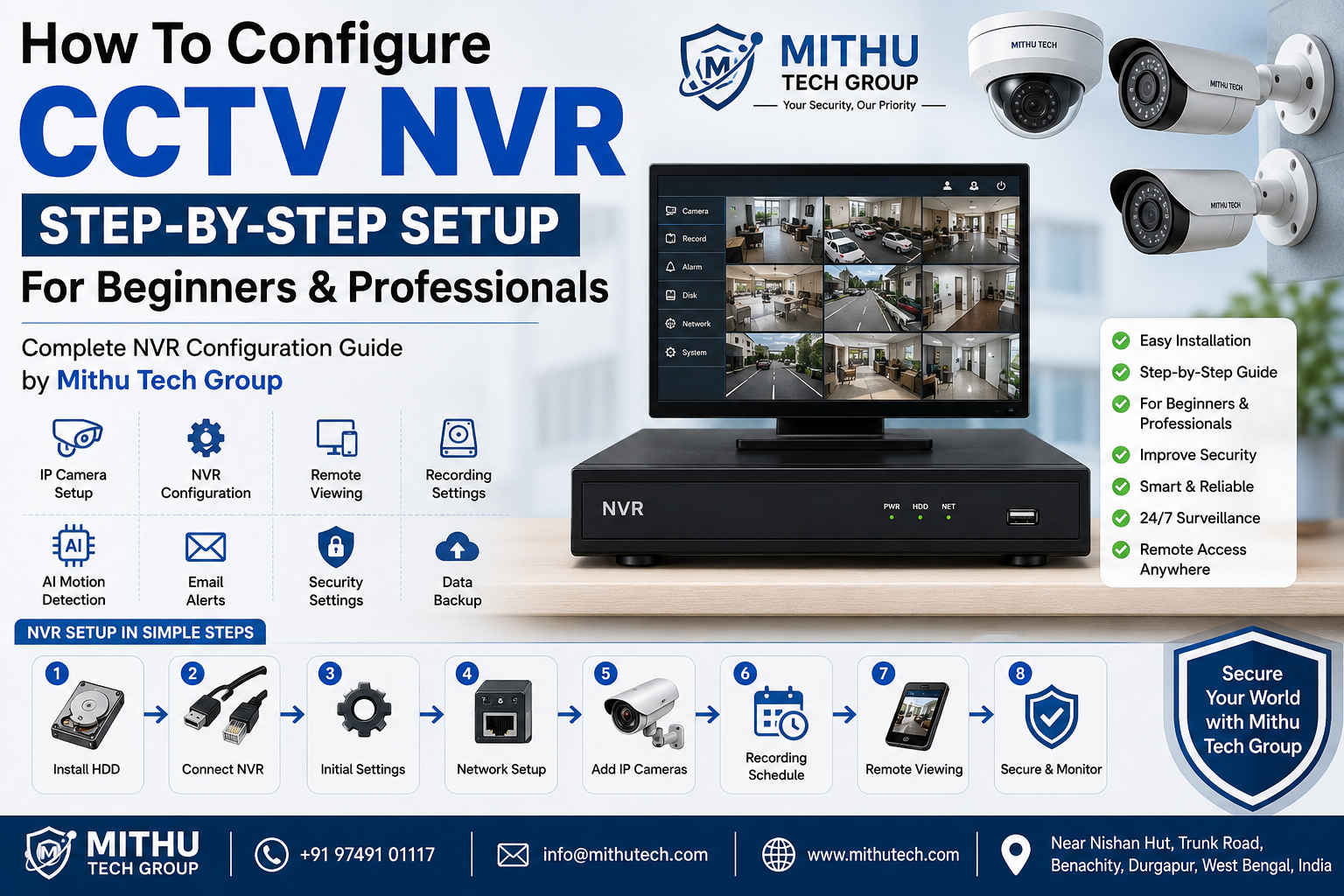
How To Configure CCTV NVR – Complete Step-by-Step Setup Guide for Beginners & Professionals | Mithu Tech Group – 2026
Learn how to configure CCTV NVR with this complete beginner-to-professional guide. Discover NVR installation, IP camera setup, remote viewing, recording settings, troubleshooting, and security best practices by Mithu Tech Group.
How To Configure CCTV NVR – Complete Step-by-Step Setup Guide
Modern CCTV systems have evolved far beyond traditional DVR-based surveillance. Today, Network Video Recorders (NVRs) combined with IP Cameras provide crystal-clear video quality, intelligent analytics, remote monitoring, and reliable storage. Whether you’re installing CCTV for your home, office, factory, school, warehouse, hospital, retail store, or commercial building, knowing how to configure an NVR properly is essential for achieving maximum performance.
In this comprehensive guide by Mithu Tech Group, you’ll learn everything from connecting hardware to configuring network settings, adding IP cameras, enabling remote viewing, optimizing recording schedules, and securing your surveillance system against cyber threats.
This guide is suitable for complete beginners, CCTV technicians, security professionals, and IT administrators.
What is an NVR?
An NVR (Network Video Recorder) is a device that records video from IP cameras over a network. Unlike DVR systems, NVRs receive already processed digital video from IP cameras, providing:
- Higher image quality
- Easier installation
- Better scalability
- Remote management
- AI-based analytics
- Motion detection
- Face recognition (supported models)
- Human & vehicle detection
Company
: Mithu Tech GroupPhone: +91 97491 01117 Email:info@mithutech.comWebsite:https://www.mithutech.comAddress: Near Nishan Hut, Trunk Road, Benachity, Durgapur, West Bengal, India
Why Choose an NVR Instead of a DVR?
Benefits include:
- Up to 4K and 8K recording
- PoE support
- Better video compression
- Remote cloud access
- AI smart detection
- Flexible camera placement
- Easier maintenance
- Future-ready surveillance
Equipment Required Before Configuration
Before starting the installation, prepare the following:
- Network Video Recorder (NVR)
- IP Cameras
- PoE Switch (if required)
- Ethernet Cat6 Cable
- HDMI Monitor
- USB Mouse
- Hard Disk (Surveillance Grade)
- Router
- Internet Connection
- Power Backup (UPS)
Step 1: Install the Hard Disk
Open the NVR carefully.
Install a surveillance-grade hard disk.
Recommended:
- 1TB
- 2TB
- 4TB
- 6TB
- 8TB
- 10TB
Connect:
- SATA Cable
- Power Cable
Close the cover.
Step 2: Connect the NVR
Connect:
HDMI → Monitor
USB Mouse → USB Port
LAN Cable → Router
Power Adapter → NVR
Turn ON the device.
Step 3: Initial Startup Wizard
When the NVR boots:
Choose:
- Language
- Region
- Time Zone
- Date Format
- Time Format
Enable:
✓ Auto DST
Click Next.
Step 4: Set Strong Administrator Password
Never leave the default password.
A secure password should include:
- Uppercase letters
- Lowercase letters
- Numbers
- Symbols
Example:
Mithu@2026Secure#
Store it safely.
Step 5: Configure Date & Time
Correct date and time are critical for:
- Playback
- Evidence
- Event Logs
- Motion Detection
Enable:
- NTP Server
- Internet Time Synchronization
Step 6: Configure Network Settings
Navigate to:
Main Menu
↓
Network
Configure:
IP Address
Subnet Mask
Gateway
DNS Server
Example:
IP Address:
192.168.1.100
Gateway:
192.168.1.1
DNS:
8.8.8.8
Secondary DNS:
1.1.1.1
Step 7: Enable DHCP (Optional)
If using a home router:
Enable DHCP.
For businesses:
Use Static IP.
Step 8: Add IP Cameras
Go to:
Camera Management
↓
Search
The NVR automatically detects cameras.
Click:
Add
If required:
Enter
- Username
- Password
- Port
The camera status becomes:
Online
Step 9: Configure PoE Ports
If using a PoE NVR:
Simply connect cameras.
The NVR:
- Powers cameras
- Detects cameras
- Assigns IP
- Starts recording
Step 10: Configure Recording
Navigate:
Storage
↓
Schedule
Options:
Continuous Recording
Motion Recording
Event Recording
Smart Recording
Recommended:
24×7 recording for businesses
Motion recording for homes
Step 11: Configure Motion Detection
Open:
Event
↓
Motion Detection
Select:
Sensitivity
Region
Schedule
Notification
Recommended sensitivity:
Medium
Step 12: Configure AI Features
Modern NVRs support:
- Human Detection
- Vehicle Detection
- Line Crossing
- Intrusion Detection
- Face Recognition
- Object Detection
- Missing Object Detection
- Heat Map
- Crowd Detection
Enable only required features.
Step 13: Configure Email Alerts
Enter:
SMTP Server
Password
Recipient
You’ll receive alerts whenever:
- Motion detected
- Camera disconnected
- Hard disk error
- Network failure
Step 14: Enable Mobile Remote Viewing
Install the manufacturer’s mobile app.
Typical steps:
- Create an account.
- Scan the QR code displayed on the NVR.
- Add the device.
- Verify online status.
- Start live viewing and playback.
Step 15: Configure User Accounts
Create separate accounts for:
- Administrator
- Manager
- Operator
- Viewer
Grant only the permissions each user needs.
Step 16: Configure HDD Management
Go to:
Storage
↓
Disk Management
Check:
- HDD Status
- Capacity
- Health
- SMART Status
Format the disk before first use.
Step 17: Configure Video Quality
Recommended settings:
Resolution:
4MP / 5MP / 8MP
Frame Rate:
20–30 FPS
Bitrate:
2048–4096 Kbps (adjust based on camera resolution and storage requirements)
Compression:
H.265+
Step 18: Configure Recording Retention
Retention depends on:
- HDD Size
- Camera Count
- Resolution
- Recording Schedule
- Bitrate
Enable overwrite when the disk becomes full so recording continues automatically.
Step 19: Configure Backup
Insert a USB drive.
Go to:
Playback
↓
Backup
Select:
- Camera
- Date
- Time
Export recordings.
Step 20: Update Firmware
Check periodically for official firmware updates.
Benefits include:
- Bug fixes
- Security improvements
- Better compatibility
- New features
- Performance enhancements
Best Security Practices
- Change default passwords immediately.
- Use strong, unique passwords.
- Enable HTTPS if supported.
- Keep firmware updated.
- Disable unused services.
- Restrict administrator access.
- Use UPS power backup.
- Schedule regular backups.
- Review system logs periodically.
- Place the NVR in a secure, locked location.
Common NVR Configuration Problems
Camera Offline
Possible causes:
- Faulty cable
- Wrong password
- IP conflict
- Camera powered off
- Network issue
No Recording
Check:
- HDD installed correctly
- Disk formatted
- Recording schedule enabled
- Storage not full
Cannot View on Mobile
Verify:
- Internet connection
- Device online status
- Correct login details
- QR code registration
- Firewall/router settings if applicable
Time Incorrect
Enable:
- NTP
- Correct time zone
- Automatic synchronization
Maintenance Tips
- Clean cameras every month.
- Inspect cables regularly.
- Test recordings weekly.
- Update firmware when recommended.
- Monitor HDD health.
- Replace failing hard drives promptly.
- Review user permissions.
- Test alerts periodically.
Industries That Benefit from NVR CCTV Systems
- Residential Homes
- Apartments
- Schools
- Colleges
- Hospitals
- Warehouses
- Factories
- Hotels
- Shopping Malls
- Banks
- Retail Stores
- Petrol Pumps
- Construction Sites
- Offices
- Government Buildings
- Parking Areas
- Industrial Plants
Why Choose Mithu Tech Group?
Mithu Tech Group provides complete CCTV surveillance solutions, including:
- CCTV Consultation
- Site Survey
- IP Camera Installation
- NVR & DVR Configuration
- PoE Network Setup
- Remote Viewing Configuration
- Annual Maintenance Contracts (AMC)
- CCTV Upgrades
- System Troubleshooting
- Enterprise Surveillance Solutions
- Home Security Systems
- Commercial CCTV Installation
- Technical Support
Our experienced technicians ensure every surveillance system is configured for maximum performance, security, and reliability.
Frequently Asked Questions (FAQs)
1. What is an NVR used for?
An NVR records video from IP cameras over a network and stores footage for live viewing and playback.
2. Can I use Wi-Fi cameras with an NVR?
Many NVRs support compatible Wi-Fi IP cameras, though compatibility varies by manufacturer.
3. Is PoE required?
No. Cameras can also use separate power supplies, but PoE simplifies installation.
4. Which is better: DVR or NVR?
NVR systems generally provide higher image quality, better scalability, and more advanced features.
5. How many cameras can an NVR support?
Common models support 4, 8, 16, 32, 64, or more channels depending on the hardware.
6. How much storage do I need?
Storage depends on camera count, resolution, recording schedule, frame rate, and retention period.
7. Can I watch CCTV remotely?
Yes. Most modern NVRs support secure remote viewing through dedicated mobile apps or web interfaces.
8. Should I update firmware?
Yes. Firmware updates improve security, stability, and compatibility.
9. What happens when the hard drive is full?
With overwrite enabled, the oldest recordings are replaced automatically by new footage.
10. Can one NVR connect to multiple IP cameras from different brands?
Many NVRs support ONVIF-compatible cameras, but compatibility and available features may vary.
Conclusion
A properly configured CCTV NVR is the foundation of a dependable surveillance system. By following the steps in this guide—installing hardware, configuring network settings, adding cameras, setting recording schedules, enabling remote access, and applying security best practices—you can build a surveillance solution that delivers reliable protection and clear video evidence when it matters most.
Whether you’re a homeowner securing your property or a business deploying a multi-camera security system, correct NVR configuration ensures optimal performance, efficient storage, and long-term reliability.
For professional CCTV installation, NVR configuration, IP camera setup, maintenance, and security consultation, Mithu Tech Group provides end-to-end surveillance solutions tailored for residential, commercial, and industrial environments.
Frequently Asked Questions (FAQs) About CCTV NVR Configuration
1. What is an NVR in CCTV?
An NVR (Network Video Recorder) records and manages video from IP cameras over a network.
2. What does NVR stand for?
NVR stands for Network Video Recorder.
3. What is the difference between NVR and DVR?
NVR works with IP cameras over a network, while DVR works with analog cameras using coaxial cables.
4. Which is better, NVR or DVR?
NVR offers better video quality, advanced features, and easier scalability.
5. Can I install an NVR myself?
Yes, basic NVR systems can be installed by following the manufacturer’s setup instructions.
6. Do I need the internet to use an NVR?
No, internet is only required for remote viewing and cloud-based services.
7. Can an NVR work offline?
Yes, it can record locally without an internet connection.
8. What cameras work with an NVR?
IP cameras that are compatible with the NVR or support ONVIF.
9. Can I connect Wi-Fi cameras to an NVR?
Yes, if both the NVR and cameras support wireless connectivity.
10. What is a PoE NVR?
A PoE NVR powers IP cameras through Ethernet cables.
11. What does PoE mean?
PoE stands for Power over Ethernet.
12. Is PoE better than separate power adapters?
Yes, PoE simplifies installation and reduces cable clutter.
13. How many cameras can an NVR support?
Depending on the model, typically 4, 8, 16, 32, 64, or more.
14. Can I mix different camera brands?
Yes, if they support the ONVIF protocol.
15. What is ONVIF?
ONVIF is a standard that allows compatible IP cameras and NVRs to communicate.
16. Can I use 4K cameras with an NVR?
Yes, if the NVR supports 4K recording.
17. What hard drive is recommended for an NVR?
A surveillance-grade hard drive designed for 24/7 recording.
18. Can I use a normal desktop hard drive?
It’s possible but not recommended for continuous surveillance recording.
19. How much storage do I need?
It depends on camera count, resolution, recording schedule, and retention period.
20. What is H.265 compression?
A video compression technology that reduces storage while maintaining quality.
21. Is H.265 better than H.264?
Yes, it generally provides better storage efficiency.
22. How do I install an HDD in an NVR?
Open the NVR, mount the drive, connect SATA and power cables, then format it.
23. Why should I format the hard drive?
Formatting prepares it for reliable recording.
24. Can I replace the hard drive later?
Yes, larger drives can usually be installed if supported.
25. How do I set the correct date and time?
Configure the time manually or enable automatic NTP synchronization.
26. Why is the correct time important?
It ensures accurate playback and evidence timestamps.
27. What is DHCP?
DHCP automatically assigns IP addresses to devices.
28. Should I use DHCP or a static IP?
Static IP is recommended for business installations.
29. What is an IP address?
A unique network address assigned to a device.
30. What is a subnet mask?
It defines the network segment for communication.
31. What is a gateway?
The router address used for internet access.
32. What is DNS?
A service that converts domain names into IP addresses.
33. How do I add cameras to an NVR?
Use Camera Management and search for available cameras.
34. Why is my camera offline?
It may be caused by power issues, network problems, incorrect passwords, or IP conflicts.
35. What is an IP conflict?
Two devices using the same IP address.
36. How do I resolve an IP conflict?
Assign a unique IP address to each device.
37. Can I rename cameras?
Yes, meaningful names make management easier.
38. How do I enable motion detection?
Open Event Settings and activate Motion Detection.
39. What is motion recording?
Recording starts only when movement is detected.
40. Does motion recording save storage?
Yes, it significantly reduces storage usage.
41. What is continuous recording?
The system records video 24/7.
42. Which recording mode is best?
Continuous for businesses and motion detection for homes.
43. Can I schedule recording?
Yes, recording schedules can be customized.
44. What is event recording?
Recording triggered by specific security events.
45. What AI features are available?
Human detection, vehicle detection, intrusion detection, and more.
46. What is line crossing detection?
An alert when someone crosses a virtual boundary.
47. What is intrusion detection?
It detects movement within a defined area.
48. Can AI reduce false alarms?
Yes, AI helps distinguish people and vehicles from other motion.
49. How do I receive motion alerts?
Enable push notifications or email alerts.
50. Can I receive alerts on my phone?
Yes, through the manufacturer’s mobile app.
51. How do I enable remote viewing?
Connect the NVR to the internet and add it to the mobile app.
52. Is remote viewing free?
Most manufacturers provide free remote viewing services.
53. Can multiple users access the same NVR?
Yes, multiple users can access with appropriate permissions.
54. Can I create user accounts?
Yes, most NVRs support multiple user accounts.
55. How do I change the administrator password?
Go to User Management and update the password.
56. Why should I use a strong password?
It protects the system from unauthorized access.
57. What happens if I forget the password?
Use the manufacturer’s password recovery process.
58. Can I back up recordings?
Yes, to a USB drive or network storage.
59. What file formats are used for backup?
Common formats include MP4 and AVI, depending on the manufacturer.
60. Can I export video clips?
Yes, select the desired time range and export.
61. How do I play back recordings?
Use the Playback menu and choose the required date and time.
62. Can I search recordings by date?
Yes, recordings are searchable by date and time.
63. What happens when the hard drive is full?
Old recordings are overwritten if overwrite is enabled.
64. What is overwrite mode?
It automatically replaces the oldest recordings with new ones.
65. How often should I update firmware?
Whenever the manufacturer releases stable updates.
66. Why update firmware?
To improve security, performance, and compatibility.
67. Can firmware updates erase recordings?
Normally no, but backing up important footage is recommended.
68. How do I check HDD health?
Use Disk Management or SMART status.
69. What is SMART?
A hard drive monitoring technology that reports drive health.
70. Why is my NVR beeping?
Possible reasons include HDD failure, camera disconnection, or system errors.
71. How do I stop the beeping?
Resolve the underlying warning or disable the alarm after checking.
72. Can I connect an NVR to a TV?
Yes, via HDMI or VGA if supported.
73. Does an NVR support dual monitors?
Many advanced models do.
74. What resolution should I use?
Use the highest supported resolution that fits your storage capacity.
75. What frame rate is recommended?
Typically 20–30 FPS for smooth video.
76. Can I zoom during playback?
Yes, digital zoom is supported by many systems.
77. Can I record audio?
Yes, if the cameras and NVR support audio.
78. What is two-way audio?
It allows users to listen and speak through compatible cameras.
79. How do I improve night vision?
Clean the camera lens and ensure sufficient infrared illumination.
80. Why is my night image blurry?
Dirty lenses, poor focus, or reflective surfaces can cause blur.
81. Can weather affect CCTV cameras?
Yes, extreme weather may impact image quality and hardware.
82. Are outdoor IP cameras waterproof?
Most outdoor models are rated IP66 or IP67.
83. What is IP66?
A weather-resistant rating for dust and water protection.
84. Can lightning damage an NVR?
Yes, surge protection and UPS systems are recommended.
85. Should I use a UPS?
Yes, it protects against power failures and voltage fluctuations.
86. How often should I clean cameras?
Every one to three months or as needed.
87. How long do CCTV cameras last?
Typically 5–10 years with proper maintenance.
88. How long does an NVR last?
Usually 5–8 years depending on usage and maintenance.
89. Can I expand my CCTV system later?
Yes, if additional channels are available or by upgrading the NVR.
90. Can one NVR monitor multiple locations?
Yes, through compatible network configurations.
91. What internet speed is needed for remote viewing?
At least 10 Mbps upload is recommended for smooth streaming.
92. How can I secure my NVR?
Use strong passwords, update firmware, and disable unused services.
93. Should I change the default password?
Yes, immediately after installation.
94. Is CCTV legal for home use?
Generally yes, provided local privacy and surveillance laws are followed.
95. How often should I inspect my CCTV system?
At least once every month.
96. Can CCTV work during a power outage?
Yes, if connected to a UPS or backup power system.
97. Why is my video lagging?
Network congestion, insufficient bandwidth, or high-resolution streaming may be the cause.
98. Can I access my CCTV from anywhere?
Yes, if remote access is properly configured and internet is available.
99. Why choose professional CCTV installation?
Professional installation ensures proper camera placement, secure configuration, and reliable performance.
100. Why choose Mithu Tech Group for CCTV installation and NVR configuration?
Mithu Tech Group offers expert CCTV consultation, professional installation, NVR configuration, remote monitoring setup, maintenance, and technical support for residential, commercial, and industrial security systems.