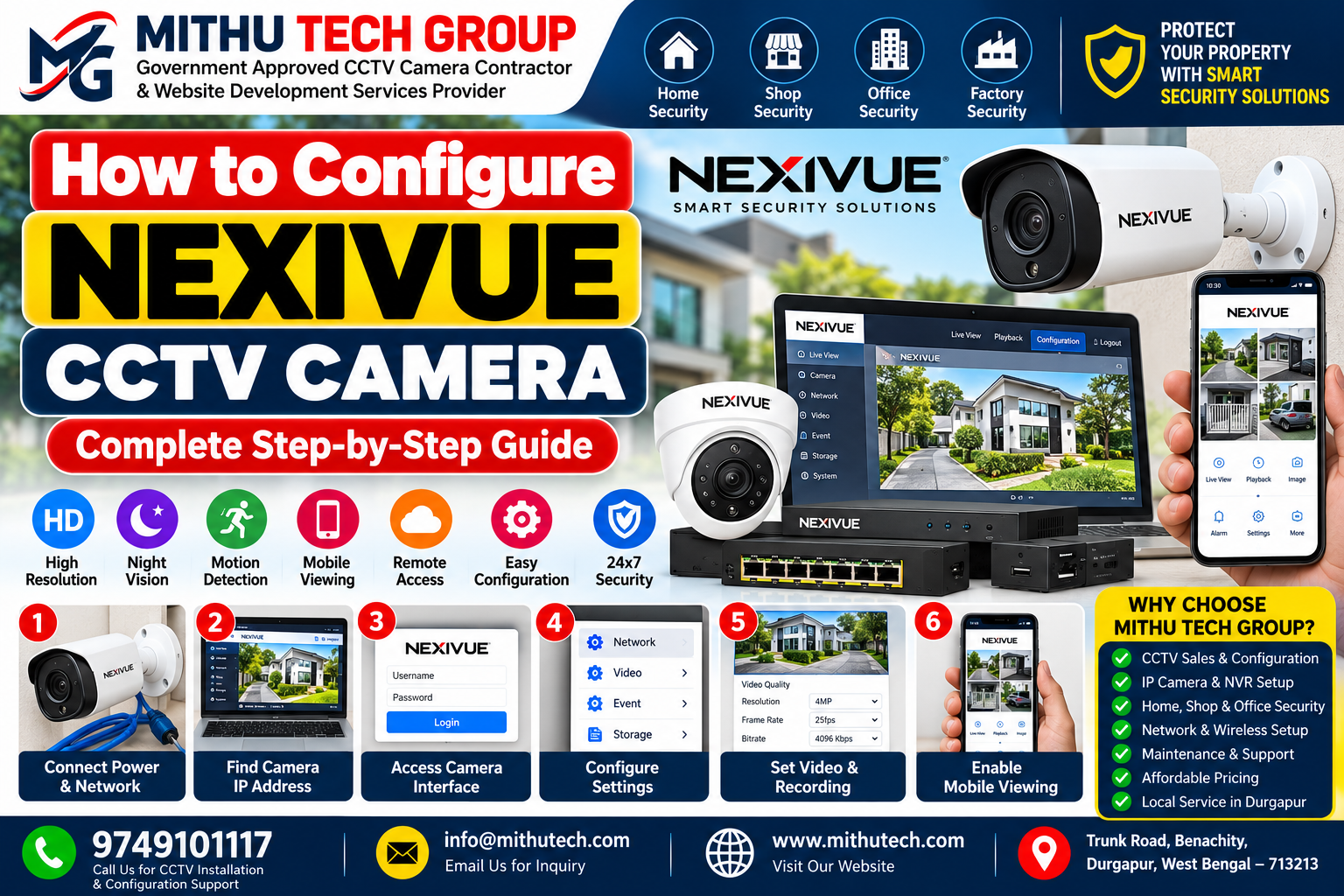
Introduction: How to Configure NEXIVUE CCTV Camera Correctly
How to Configure NEXIVUE CCTV Camera: Installing a CCTV camera is only one part of creating a reliable security system. After installation, the camera must be configured correctly so that it communicates with the network, produces a clear image, records footage when required and provides access to authorised users.
If you have purchased a NEXIVUE IP camera for your home, shop, office, warehouse or commercial property, understanding its configuration can help you get the most out of your surveillance equipment.
A correctly configured CCTV system can help monitor important areas, record activity, review previous footage and provide remote viewing where the equipment supports it. However, incorrect network settings, weak passwords, incompatible recording equipment and disabled recording schedules can prevent a CCTV system from working as intended.
This guide explains how to configure a NEXIVUE CCTV camera step by step. It covers initial setup, network connections, IP address configuration, password security, NVR integration, recording schedules, mobile viewing, night vision and common troubleshooting procedures.
The instructions focus on general NEXIVUE IP camera configuration. Exact menu names and available features depend on the model and firmware installed on your device.
For model-specific instructions, consult the official NEXIVUE User Manual before changing advanced settings.
Mithu Tech Group provides CCTV camera sales, installation and configuration services in Durgapur and surrounding areas. Visit MithuTech.com to explore related CCTV services and technical guides.
1. Understanding NEXIVUE CCTV Camera Configuration
CCTV camera configuration means adjusting the device’s settings so it operates correctly within the intended surveillance system.
For an IP camera, configuration can involve several separate tasks.
Network Configuration
Network configuration allows the camera to communicate with other devices. It may involve an IP address, subnet mask, gateway, DNS settings and other network parameters.
Without a working network connection, some camera features may not function.
Video Configuration
Video configuration determines how the camera captures and transmits images. Depending on the model, available settings may include resolution, frame rate, bitrate, image orientation, exposure and compression.
Recording Configuration
Recording settings determine when and how footage is stored. A compatible system may support continuous recording, scheduled recording or motion-triggered recording.
Mobile Viewing Configuration
Remote viewing configuration allows authorised users to access the camera or recorder through supported software.
Not every camera uses the same application or pairing process. Always verify the correct method for the exact device.
Security Configuration
Security settings help protect the camera against unauthorised access. These can include password changes, user permissions, firmware updates and secure remote-access settings.
Each configuration stage contributes to the overall reliability of the CCTV system.
2. What You Need Before Configuring a NEXIVUE CCTV Camera
Before opening the configuration interface, prepare the equipment and information needed for the setup.
Depending on the camera model, you may require:
- A NEXIVUE IP camera.
- A compatible PoE switch or suitable power adapter.
- An Ethernet cable.
- A router or local network.
- A compatible NVR if centralised recording is required.
- A computer or monitor for supported configuration methods.
- A smartphone if the camera supports mobile viewing.
- The official camera manual.
- Authorised login credentials.
- A suitable recording drive if an NVR is being used.
Check the camera’s model number and power requirements first.
Some compatible NEXIVUE IP cameras can be powered through PoE or a 12V DC adapter. However, do not assume that both options are supported by every model. Verify the correct electrical specifications before connecting the device.
Also determine whether the camera needs to work independently, connect to an NVR or become part of a larger network surveillance system.
Planning this before configuration can prevent compatibility problems later.
3. Step One: Power On the NEXIVUE CCTV Camera
The first step is to power the camera correctly.
For a model that supports PoE, connect its Ethernet cable to a compatible PoE switch or PoE-enabled recorder.
For a model that uses a separate power adapter, connect the specified power supply according to the manufacturer’s instructions.
Wait for the camera to complete its startup process.
Check the following:
- The power source is working.
- The Ethernet connector is seated properly.
- The switch or network port is active.
- The camera has completed startup.
- The cable and power supply are compatible.
If the camera does not power on, check the power source and connections before attempting software configuration.
A network configuration procedure cannot resolve a physical power problem.
4. Step Two: Connect the NEXIVUE Camera to the Network
For a typical wired IP camera, connect an Ethernet cable between the camera and the appropriate network equipment.
A basic network arrangement may look like this:
NEXIVUE IP camera → Ethernet cable → PoE switch → router or network infrastructure
When a compatible NVR provides PoE ports, the camera may instead connect directly to the recorder.
The correct connection depends on the camera and recording system.
After connecting the cable, check whether the camera obtains an IP address. If your router provides DHCP, the router or network server may assign an address automatically.
Some NEXIVUE camera documentation describes DHCP-based setup and access through a browser using the camera’s IP address. The precise defaults and discovery methods can vary, so consult the manual for your particular model.
Do not assume that a default IP address from another camera applies to your device.
What Is an IP Address?
An IP address identifies a device on an IP network.
For example, a local network may contain a router, several computers, a network printer, multiple cameras and an NVR. Each device needs appropriate network addressing to communicate successfully.
An incorrect address or conflicting IP configuration can prevent the camera from being accessed.
5. Step Three: Find the NEXIVUE CCTV Camera IP Address
Finding the camera’s IP address is an important step when configuring a network camera.
Depending on the model, you may be able to locate the address through the router’s connected-device list, the camera’s supported discovery utility or the NVR’s device-management interface.
Method One: Check the Router
If the camera and computer are connected to the same local network, open the router’s administration interface using the authorised administrator account.
Look for sections such as:
- Connected devices.
- DHCP clients.
- LAN devices.
- Network device list.
Find the camera using its displayed name or another identifiable device detail.
The exact menu name depends on the router.
Method Two: Use the Manufacturer’s Discovery Utility
If NEXIVUE provides a supported camera-discovery utility for your model, use the official version to search for cameras on the local network.
Check the utility’s instructions before downloading or running it.
Do not use software from unverified third-party websites simply because it claims to detect CCTV cameras.
Method Three: Check the NVR
If the camera is connected to a compatible NVR, open the camera-management interface and look for detected devices.
Some recorders can discover and display compatible cameras automatically.
What If the Camera Cannot Be Found?
Check the power supply, Ethernet cable, switch port and network connection.
Confirm that the computer and camera are connected to networks that can communicate with each other.
If the camera is connected to an isolated PoE network on the NVR, it may not appear in the main router’s device list. This can be normal for some recorder designs.
Avoid resetting the camera until basic connectivity and the manufacturer’s recovery instructions have been checked.
6. Step Four: Access the Camera Configuration Interface
Once you know the camera’s address, follow the supported access procedure for your model.
Some NEXIVUE IP cameras provide a browser-based configuration interface. Other devices may require a compatible discovery tool, recorder interface or supported application.
If the model supports browser access, connect a computer to the appropriate network and enter the camera’s verified IP address in the browser’s address bar.
For example, an administrator might access a camera at a local address such as http://192.168.1.120, but this is only an illustrative example, not a universal NEXIVUE address.
Use the actual address assigned to your camera.
If the login page appears, sign in with the authorised credentials supplied or configured for the device.
If the page does not open, check whether the computer can reach the camera and whether the model supports that access method.
Do not repeatedly guess passwords or use undocumented bypass methods.
7. Step Five: Set a Strong Camera Password
Password configuration should be treated as a priority.
CCTV cameras are networked devices, and weak credentials can expose video feeds or administrative settings to unauthorised users.
If the device requires an initial password setup, follow the supplied instructions.
If it has an existing password, change it when appropriate and authorised.
A strong password should:
- Be unique to the camera or security system.
- Avoid personal information and predictable patterns.
- Be difficult to guess.
- Not be reused for email or social media.
- Be stored securely for authorised administrators.
Where supported, create separate user accounts for people who need access to the system.
For example, an administrator may need configuration permissions, while a staff member may require live viewing only.
Never publish camera credentials, pairing codes or private device information in a blog article, screenshot or public support request.
8. Step Six: Configure the Camera’s IP Address
A camera may use DHCP or a manually assigned static IP address, depending on the model and network design.
DHCP Configuration
Dynamic Host Configuration Protocol, or DHCP, allows a network server such as a router to assign network settings automatically.
DHCP is often convenient during initial setup because it reduces manual configuration.
However, the camera’s address may change later unless the network uses an appropriate reservation or other stable addressing arrangement.
Static IP Configuration
A static IP address is configured manually so the device uses a consistent address.
This can be useful for camera-management systems that expect a camera to remain at a known address.
Before assigning a static IP address, confirm:
- The correct network range.
- The subnet mask.
- The default gateway, if required.
- The DNS settings, if required.
- That the selected address is not already in use.
- That the address does not conflict with the router’s DHCP allocation range.
Incorrect network settings can make the camera inaccessible.
If you are unfamiliar with IP addressing, a network administrator or qualified installer can configure the device safely.
Should Every Camera Have a Static IP?
Not necessarily. The best approach depends on the network architecture and recording equipment.
A DHCP reservation may provide a consistent address while allowing the router to manage addressing centrally.
For multi-camera installations, document the addressing arrangement so future troubleshooting is easier.
9. Step Seven: Configure Date, Time and Time Zone
Correct date and time settings are important for searching recordings and investigating incidents.
If the camera or recorder supports automatic time synchronisation, configure it according to the manufacturer’s instructions.
Select the correct time zone for the installation location.
For a property in India, the applicable time zone is India Standard Time, UTC+05:30.
Check the displayed date and time after saving the settings.
Incorrect timestamps can make it difficult to find footage from a specific incident, even when recording is working correctly.
For a multi-camera system, make sure the cameras and recorder use consistent time settings.
If a daylight-saving setting is available, configure it according to the location. India does not ordinarily observe daylight-saving time.
10. Step Eight: Configure Video Quality and Image Settings
After the network connection is working, adjust the image settings to suit the surveillance objective.
Available settings depend on the camera model and firmware.
Resolution
Resolution determines the number of pixels used to represent the image.
Higher resolution can provide greater detail, but it may also increase bandwidth and storage consumption.
Choose the highest practical setting supported by your recording system and network requirements.
Frame Rate
Frame rate determines how many video frames are captured or transmitted per second.
Higher frame rates can make movement appear smoother, but they generally require more bandwidth and storage at comparable compression settings.
Select a frame rate appropriate for the type of activity being monitored.
Bitrate
Bitrate affects how much data the camera uses to transmit video.
Higher bitrates may preserve more detail, particularly in complex scenes, but they also require additional network capacity and storage.
A suitable configuration balances image quality, available bandwidth and retention requirements.
Compression
If supported, video compression settings can help manage storage and transmission requirements.
The available options and their effects depend on the camera and recorder.
Exposure and Backlight
Exposure settings influence how bright or dark the image appears.
For entrances exposed to strong daylight, backlight compensation or other supported image adjustments may improve visibility.
Test the camera in actual lighting conditions instead of relying only on the configuration screen.
11. Step Nine: Configure Night Vision
Night vision can be important for cameras monitoring gates, entrances, parking spaces and other areas after dark.
Depending on the model, the camera may use infrared illumination, colour imaging under low light or another supported method.
Check which night-vision features are available before adjusting the settings.
Test the Image After Dark
Inspect the camera when the lighting conditions match the intended operating environment.
Check whether faces, vehicles and other important objects remain visible at the required distance.
Reduce Infrared Reflections
Infrared light can reflect from nearby walls, glass or other surfaces and reduce image quality.
If the camera is installed behind glass, infrared reflections can be particularly problematic.
Reposition the camera or adjust the lighting arrangement where appropriate.
Keep the Lens Clean
Dust, fingerprints, moisture and condensation can affect both daytime and night-time footage.
Clean the lens according to the manufacturer’s instructions.
Do not use abrasive materials or unsuitable cleaning chemicals.
12. Step Ten: Configure Motion Detection and Alerts
If the camera supports motion detection, configure it according to the area being monitored.
Motion detection can be useful for entrances, restricted areas and storage rooms.
However, poorly configured detection may generate excessive alerts or fail to detect important activity.
Select the Detection Area
Some cameras allow the user to select specific areas of the image for motion detection.
For example, you may want to monitor an entrance without triggering alerts every time a tree moves in the wind.
Choose detection zones that reflect the actual security objective.
Adjust Detection Sensitivity
High sensitivity can produce more alerts, including alerts caused by shadows or small movements.
Low sensitivity may reduce false alarms but can also miss activity.
Test the settings under normal conditions before relying on them.
Configure Notifications
If the model and supported application provide alerts, configure the required notification permissions and event settings.
Avoid assuming that every motion event will generate an alert under all network conditions.
For critical areas, review recorded footage and test the alert system periodically.
13. Step Eleven: Connect the NEXIVUE Camera to an NVR
An NVR can centralise video recording and management for multiple compatible IP cameras.
Before adding the camera, verify that the recorder supports the camera’s required protocol, resolution and other necessary features.
Basic NVR Configuration Process
- Power on the NVR and complete its initial setup.
- Connect the recorder to the intended network or camera ports.
- Open the device-management menu.
- Search for compatible cameras or use the supported manual-add process.
- Select the correct camera.
- Enter authorised credentials if requested.
- Confirm the connection status.
- Open live view and check the image.
The process may differ depending on whether the camera connects directly to a PoE-enabled NVR or through a separate network switch.
Why Is the Camera Not Appearing on the NVR?
Possible reasons include an incompatible network arrangement, incorrect credentials, unsupported protocols, a faulty cable or an IP address conflict.
Check the connection and compatibility information before changing multiple settings.
If the camera and NVR use separate network interfaces, consult the equipment documentation to understand how the networks are expected to communicate.
14. Step Twelve: Configure CCTV Recording Settings
A working live image does not automatically mean that video is being recorded.
Configure the recording method supported by the camera or NVR.
Continuous Recording
Continuous recording stores video throughout the configured recording schedule.
It may be appropriate for areas where maintaining a complete record is important.
Motion-Based Recording
Motion-based recording stores video when the system detects activity according to its settings.
This can reduce storage consumption, but it depends on detection performance and configuration.
Scheduled Recording
Scheduled recording allows the user to specify the days and times when recording should take place.
This can be useful when surveillance requirements differ between operating and non-operating hours.
Check Storage Health
If the system uses an NVR hard disk, confirm that the drive is detected and operating normally.
Follow the recorder’s instructions for installing or preparing a new drive.
Important: Formatting a drive can erase existing footage. Verify that no required recordings will be lost before formatting.
Test Playback
After saving the recording settings, allow the system to record a short period of video.
Open playback and confirm that the expected footage is available.
Check the date and time to ensure the correct recording period is displayed.
Repeat this test after major configuration changes.
15. Step Thirteen: Configure NEXIVUE CCTV Mobile Viewing
Remote viewing can allow authorised users to monitor a compatible camera or NVR using a smartphone.
The supported application and pairing method depend on the exact NEXIVUE model.
Identify the Correct Application
Consult the product manual or official support resources to identify the appropriate application.
Download it only from a verified source.
Avoid selecting an application solely because its name resembles the camera brand.
Add the Camera or Recorder
Follow the model-specific instructions to sign in, add the device and complete any required verification.
Depending on the system, pairing may involve a supported device code, account registration or network configuration.
Keep pairing information private.
Test Local and Remote Viewing
First, test viewing while the phone and camera system are connected to the same local network, if the model supports this method.
Then test remote viewing through a separate network.
If local viewing works but remote viewing fails, investigate internet connectivity, remote-access configuration, account permissions and router restrictions.
Do not assume that port forwarding is required. Use the manufacturer’s supported remote-access method and keep the system secured.
Protect Mobile Access
Use a strong account password and enable additional authentication where supported.
Remove access for users who no longer need it.
If a phone is lost or an employee leaves, review the device and account permissions promptly.
16. Step Fourteen: Configure Network Security
Network security is essential for connected surveillance equipment.
A camera can capture sensitive information about people, property and business operations. Poor security settings can expose that information to unauthorised access.
Change Default Credentials
Set strong, unique passwords for camera and recorder accounts.
Avoid sharing administrator credentials with everyone who needs to view footage.
Keep Firmware Updated
Check official firmware updates for the exact model.
Follow the manufacturer’s instructions, confirm the device identity and use a reliable power supply during the update.
Do not install unofficial firmware from unverified sources.
Limit Network Exposure
Avoid exposing camera-management interfaces directly to the public internet without a carefully designed security arrangement.
Use the supported remote-access method and keep router and firewall settings appropriately configured.
Separate Devices Where Appropriate
For larger installations, a network administrator may use separate network segments for cameras, staff devices and other systems.
This can help manage access and limit unnecessary communication between devices.
The correct approach depends on the network design and equipment capabilities.
Review User Permissions
Where supported, give each user only the permissions required for their responsibilities.
Review access periodically, especially when staff or property-management arrangements change.
For additional security guidance, visit CERT-In and Cyber Swachhta Kendra.
17. How to Troubleshoot NEXIVUE CCTV Camera Configuration Problems
Even a correctly installed camera may encounter configuration problems. A systematic troubleshooting process is usually more effective than changing multiple settings at once.
Problem 1: The Camera Is Not Accessible Through the Browser
Check whether your model supports browser-based access.
Verify the IP address, network connection and access method. Confirm that the computer can communicate with the camera.
If the model requires a discovery utility or recorder interface, use the supported method instead.
Problem 2: The Camera Has an IP Address but No Live Video
Possible causes include incorrect login credentials, an unsupported stream configuration, network restrictions or an incompatible recording interface.
Check the camera’s status and follow the manufacturer’s troubleshooting procedure.
Problem 3: The Camera Is Not Detected by the Router
If the camera connects to a separate PoE network on the NVR, it may not appear in the router’s main device list.
Check the physical network layout and the recorder documentation before assuming the camera has failed.
Problem 4: The Camera Keeps Going Offline
Inspect the power supply, cable, connectors and network equipment.
For Wi-Fi cameras, check signal strength and wireless stability at the installed location.
Review device logs where available and look for recurring disconnection times.
Problem 5: The Image Is Too Dark
Check the lighting, exposure settings and night-vision configuration.
Confirm that the camera is suitable for the viewing distance and the available illumination.
Problem 6: Motion Alerts Are Too Frequent
Review the detection area and sensitivity settings.
If the camera supports detection schedules or object filtering, configure them according to the intended monitoring area.
Test the new settings before relying on them.
Problem 7: Remote Viewing Does Not Work
Confirm that local viewing is working first.
Then check the internet connection, mobile application, user permissions and remote-access configuration.
If changes to the router are necessary, make them carefully and document the original settings so they can be restored.
Problem 8: The NVR Is Not Recording
Check the storage drive, recording schedule, disk status and available capacity.
Confirm that the camera channel is assigned to the intended recording configuration.
Test playback after making changes.
Problem 9: The Camera Time Is Incorrect
Check the time zone, date, time and automatic synchronisation settings.
Make sure the recorder and camera use consistent time settings.
Incorrect timestamps can make incident investigation more difficult.
Problem 10: The Camera Stopped Working After a Reset
A factory reset may remove previous network settings, user credentials and other configuration.
Follow the model-specific recovery instructions to configure the device again.
Do not assume that settings from a different NEXIVUE model will work.
18. How to Estimate CCTV Storage and Network Requirements
Storage and bandwidth should be considered when configuring a CCTV system.
The requirements depend on the number of cameras, bitrate, recording schedule, video quality and desired retention period.
Example Storage Calculation
Suppose one camera records continuously at an average bitrate of 4 Mbps.
Its approximate storage use is 43.2 GB per day before allowing for overhead and variations in bitrate.
For four cameras operating at the same bitrate, the estimate becomes approximately 172.8 GB per day.
For seven days, the estimated requirement is about 1,210 GB before allowing for additional capacity.
A useful simplified formula is:
Daily storage in GB = average bitrate in Mbps × 10.8 × recording hours ÷ 24
Calculate the requirement for each camera and add the results for a multi-camera installation.
Actual consumption may differ because of compression, scene movement, frame rate and recording mode.
Network Bandwidth
The network must support the combined video streams and other traffic.
For remote viewing, available internet upload bandwidth is particularly important at the property where the cameras or NVR are installed.
If several users need to view multiple cameras remotely, test the system under realistic conditions.
Avoid selecting network equipment solely by the number of ports. Confirm that its switching capacity and other specifications meet the system’s needs.
19. NEXIVUE CCTV Configuration for Homes, Shops and Commercial Properties
The best configuration depends on what the camera is intended to monitor.
Home CCTV Configuration
Homeowners may prioritise entrances, parking areas, boundary gates and other appropriate access points.
Settings should balance image quality, storage requirements and ease of remote viewing.
Avoid unnecessary recording of neighbours’ private spaces.
For related advice, read Home CCTV Camera Installation in Durgapur.
Shop CCTV Configuration
Retail businesses may need cameras at entrances, billing counters, stockrooms and loading areas.
The configuration should support the required viewing detail and recording schedule.
For a shop where transactions are important, test whether the camera captures sufficient detail at the counter rather than simply showing the entire room.
Office CCTV Configuration
Offices may require surveillance at reception areas, access points and shared corridors.
Review who can view recordings and ensure that access is limited to authorised personnel.
Read our guide to Office CCTV Camera Installation in Durgapur.
Warehouse CCTV Configuration
Warehouses often need cameras covering loading bays, vehicle access, stock areas and restricted zones.
Consider the lighting, mounting height, cable route and required retention period.
If the building is large, plan the network and recording capacity before connecting every camera.
Apartment and Society CCTV Configuration
Residential societies may need cameras at common entrances, parking areas, lobbies and other shared spaces.
Use a suitable network design and establish clear procedures for recording access and retention.
Read our related guide to Apartment CCTV Camera Installation in Durgapur.
20. Why Choose Mithu Tech Group for CCTV Configuration in Durgapur?
Configuring an IP camera may be straightforward for a single-device installation, but a larger CCTV system can require careful network planning, recorder configuration and troubleshooting.
Mithu Tech Group provides CCTV-related services for homes, shops, offices and other properties in Durgapur and nearby areas.
Depending on the project, services may include:
- CCTV camera installation.
- IP camera configuration.
- Network setup and troubleshooting.
- PoE switch configuration.
- NVR and DVR setup.
- Recording and storage configuration.
- Mobile viewing setup for compatible systems.
- CCTV maintenance and technical assistance.
A suitable configuration depends on the camera model, network equipment, property layout and intended use.
Contact Mithu Tech Group
Mithu Tech Group
CCTV Camera Sales, Installation and Configuration
- Website: https://mithutech.com/
- Phone: +91 97491 01117
- Email: info@mithutech.com
- Address: Trunk Road, Benachity, Durgapur, West Bengal, India – 713213
Contact the team to discuss your NEXIVUE camera model, existing equipment and configuration requirements.
21. Frequently Asked Questions About NEXIVUE CCTV Camera Configuration
Q1. How do I configure a NEXIVUE CCTV camera?
Connect the camera to a compatible power source and network, identify its IP address, access the supported configuration interface and set the network, video and security options. Configure recording and remote viewing if supported, then test the system.
Q2. What is the default IP address of a NEXIVUE camera?
The default address depends on the model and its current network configuration. Some NEXIVUE documentation describes DHCP-based operation and model-specific default addressing. Consult the official manual rather than assuming a universal address.
Q3. How can I find my NEXIVUE camera IP address?
Check the router’s connected-device list, use the official discovery utility if available or look in the compatible NVR’s device-management menu.
Q4. How do I change the IP address of a NEXIVUE camera?
Use the supported configuration interface to change the address or network mode. Confirm the subnet, gateway and address availability before saving changes.
Q5. Can I configure a NEXIVUE CCTV camera using a mobile phone?
Some models support mobile-based configuration or viewing. Follow the official instructions for the exact model and application.
Q6. How do I connect a NEXIVUE IP camera to an NVR?
Check compatibility, connect the camera to the appropriate network or PoE port, open the recorder’s device-management interface and follow the supported camera-add procedure.
Q7. Why is my NEXIVUE camera not showing on the network?
Possible causes include power issues, a faulty cable, incorrect network settings, an isolated camera network or an incompatible connection method. Check the physical connection and supported discovery procedure first.
Q8. How do I set up remote viewing?
Use the manufacturer’s supported application or remote-access method. Complete the required authentication and test both local and remote viewing.
Q9. How can I secure my NEXIVUE camera?
Use strong unique passwords, limit account permissions, keep firmware updated through official channels and avoid unnecessary public exposure of camera-management interfaces.
Q10. How do I configure motion detection?
If supported, open the motion-detection settings, select the relevant area, adjust sensitivity and configure alerts or recording actions. Test the settings under normal conditions.
Q11. Why is my NEXIVUE camera not recording?
Check whether the storage device is available, recording is enabled and the selected schedule is correct. Confirm that playback contains recent footage.
Q12. How do I configure night vision?
Review the model’s supported night-vision options and test the camera after dark. Check for infrared reflections, poor lighting and a dirty lens.
Q13. Can a NEXIVUE camera work with a different brand of NVR?
It may work if the camera and recorder support compatible protocols and features. Verify compatibility before purchasing or connecting the equipment.
Q14. Should I use DHCP or a static IP address?
DHCP is convenient for automatic configuration. A static address or DHCP reservation can be useful when stable addressing is required. Choose according to the network design and equipment requirements.
Q15. Where can I get CCTV configuration services in Durgapur?
Contact Mithu Tech Group at +91 97491 01117 or visit https://mithutech.com/ to discuss CCTV configuration and related services.
22. Related Internal Links and External Resources
Internal linking helps readers discover related information on your website and helps search engines understand the connections between relevant pages.
Use the following links naturally within this article.
Internal Links — MithuTech.com
- How to Configure IP CCTV Camera: Complete Step-by-Step Setup Guide
- CCTV Camera Installation in Durgapur
- Home CCTV Camera Installation in Durgapur
- Office CCTV Camera Installation in Durgapur
- Apartment CCTV Camera Installation in Durgapur
- CCTV Security Services by Mithu Tech Group
Use descriptive anchor text that reflects the destination page. Avoid adding every link repeatedly or forcing irrelevant keywords into sentences.
External Links
Official NEXIVUE User Manual: https://nexivuesecurity.com/usermanual
Use this resource for model-specific camera and NVR setup documentation.
ONVIF: https://www.onvif.org/
ONVIF provides information about interoperability standards for IP-based physical security products. Check the exact device and profile compatibility before relying on interoperability.
CERT-In: https://www.cert-in.org.in/
This is a resource for cybersecurity advisories and security guidance.
Cyber Swachhta Kendra: https://www.csk.gov.in/
This Government of India initiative provides cybersecurity awareness and related resources.
Durgapur Property: https://www.durgapurproperty.com/
This related property website may be useful for readers interested in residential and commercial properties. Keep the link relevant to the discussion of property security and ownership rather than inserting unrelated property keywords into every section.
Conclusion: Configure Your NEXIVUE CCTV Camera for Reliable Security
Correct NEXIVUE CCTV camera configuration involves more than obtaining a live video feed. A reliable system needs appropriate network settings, suitable video quality, secure credentials, accurate timestamps, working recording and properly tested remote access where supported.
Start by confirming the exact camera model and consulting its official manual. Check the power and network connections, identify the device’s IP address, configure the network carefully and secure the administrative account.
Next, adjust the video and night-vision settings, configure recording if required, connect compatible NVR equipment and test playback. If remote viewing is supported, complete the official setup procedure and verify that access remains secure.
For homes, shops, offices, warehouses and residential societies, a carefully configured CCTV system can make surveillance easier to manage and recorded footage more useful.
If you need help with CCTV camera configuration, IP networking, NVR setup or CCTV maintenance in Durgapur, contact Mithu Tech Group at +91 97491 01117 or visit MithuTech.com.
Mithu Tech Group — CCTV Camera Sales, Installation and Configuration Services in Durgapur.