


Blog
🔒 How to Configure NVR CCTV Camera (2026 Guide) – Step-by-Step Setup for Beginners & Professionals
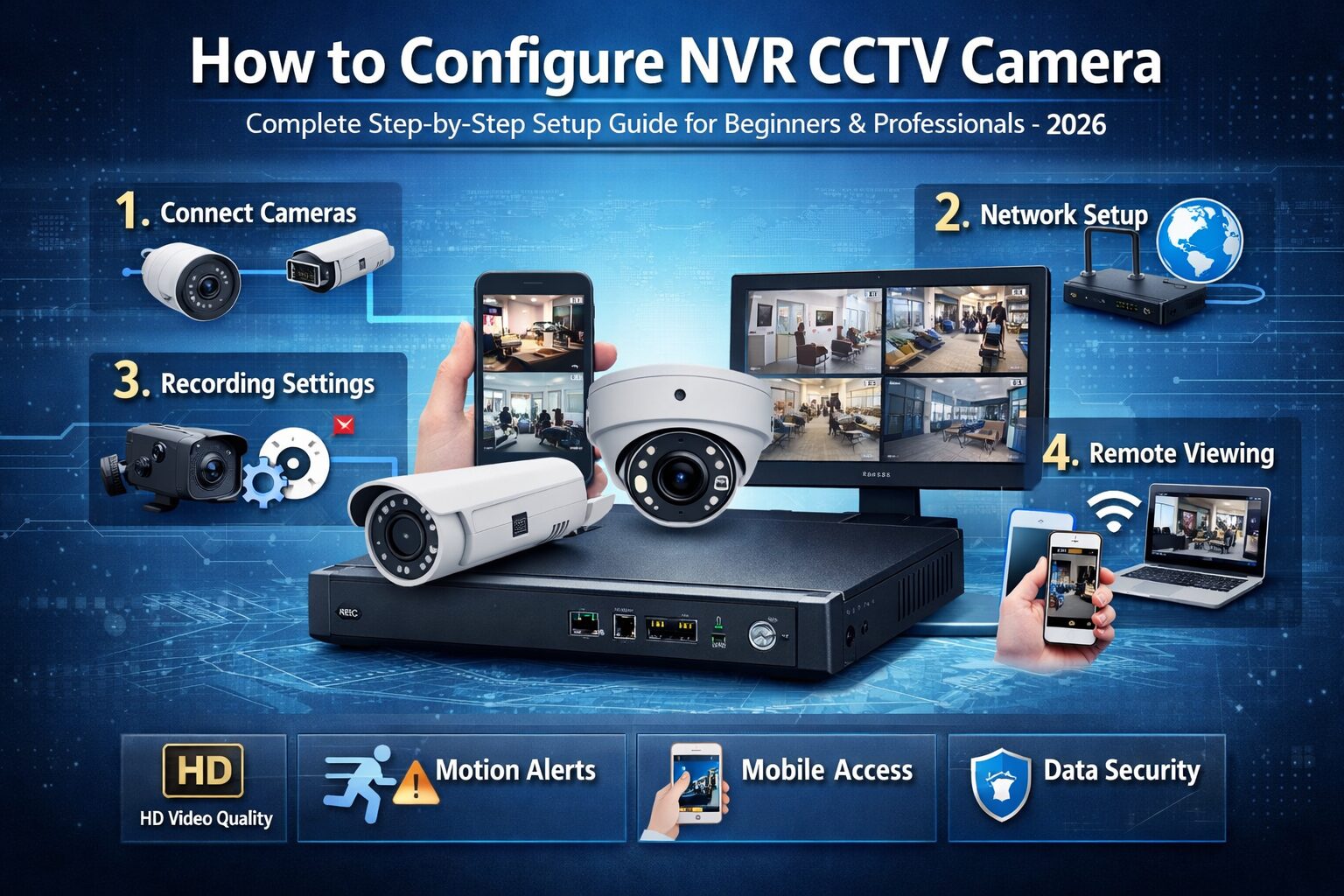
Learn How to Configure NVR CCTV Camera system step-by-step. Complete 2026 guide covering installation, network setup, recording, mobile viewing & troubleshooting.
Introduction
Setting up a surveillance system is no longer limited to security professionals. With modern IP-based technology, anyone can install and configure a Network Video Recorder (NVR) system.
However, improper configuration causes:
- cameras not recording
- remote view failure
- storage errors
- poor video quality
This complete 2026 guide explains how to configure an NVR CCTV camera system correctly, ensuring reliable recording, mobile monitoring, and long-term security.
What Is an NVR CCTV Camera System?
An NVR (Network Video Recorder) records video data received from IP cameras through a network instead of analog cables.
Difference Between DVR and NVR
| Feature | DVR | NVR |
|---|---|---|
| Camera Type | Analog | IP Camera |
| Video Quality | Low–Medium | HD–4K |
| Installation | Complex wiring | Simple Ethernet |
| Remote Access | Limited | Advanced |
| Smart AI | No | Yes |
👉 NVR systems provide clearer footage, smart detection, and remote monitoring — making them the modern standard.
Components Required for NVR Setup
Before configuration, confirm all hardware is available:
- NVR device
- IP cameras
- PoE switch / PoE NVR
- Cat5e / Cat6 LAN cable
- Hard disk (Surveillance HDD recommended)
- Router & internet connection
- Monitor and mouse
Why Proper NVR Configuration Is Important
Incorrect setup leads to data loss and security failure.
Benefits of Correct Setup
✔ Continuous recording
✔ Clear HD/4K video
✔ Mobile live view
✔ Motion alerts
✔ Reliable evidence storage
Step-by-Step: How to Configure NVR CCTV Camera
Step 1 — Connect Cameras to NVR (Physical Installation)
- Connect IP cameras to PoE ports (or PoE switch)
- Connect NVR to monitor (HDMI/VGA)
- Connect LAN cable to router
- Plug mouse into USB port
- Power ON NVR
💡 Most modern NVRs auto-detect cameras.
Step 2 — First Login & Basic Settings
When NVR boots:
- Create strong admin password
- Set date & time zone
- Select language
- Adjust display resolution
⚠ Incorrect time causes playback issues.
Step 3 — Configure Network Settings
Go to Menu → Network
Choose one:
DHCP (Automatic)
Best for home users
Static IP (Recommended for professionals)
Best for remote monitoring stability
Set:
- IP Address
- Gateway
- DNS
Test network status → must show Connected
Step 4 — Add IP Cameras to NVR
Automatic Method (Plug & Play)
Works on PoE NVR
Manual Method
Add using:
- Camera IP address
- Username & password
- ONVIF protocol
⚠ Ensure same network range (Example: 192.168.1.xxx)
Step 5 — Configure Recording Settings
Go to Storage → Recording
Choose recording type:
| Mode | Usage |
|---|---|
| Continuous | 24/7 recording |
| Motion | Saves storage |
| Schedule | Custom timing |
Recommended settings:
- Resolution: 1080p/4MP
- FPS: 15–20
- Bitrate: Medium
Step 6 — Enable Motion Detection & Smart Alerts
Navigate to Event → Motion Detection
Configure:
- Detection area
- Sensitivity level
- Alarm notifications
Advanced NVRs include:
- Human detection
- Face detection
- Intrusion detection
Step 7 — Hard Disk Setup (Very Important)
Go to Storage → HDD Management
- Format HDD
- Enable overwrite
- Check disk health
⚠ Without formatting, recording will not start.
Step 8 — Remote Viewing on Mobile & PC
Most important feature.
Mobile Setup
- Enable P2P/Cloud
- Download brand app
- Scan QR code
- Login with credentials
Now you can view CCTV from anywhere.
Step 9 — User Access & Security
Create multiple users:
| User Type | Permission |
|---|---|
| Admin | Full control |
| Operator | View + playback |
| Guest | Live view only |
Always:
- Change default password
- Disable unused ports
Step 10 — Firmware Update & Maintenance
Regular maintenance increases lifespan.
✔ Update firmware
✔ Backup settings
✔ Clean lenses monthly
✔ Check storage health
Common Problems & Solutions
| Problem | Cause | Fix |
|---|---|---|
| Camera offline | IP conflict | Change IP |
| No recording | HDD not formatted | Format disk |
| Remote view not working | Port blocked | Enable P2P |
| Lagging video | Low bandwidth | Reduce bitrate |
Best Practices for Perfect CCTV Performance
- Use branded surveillance HDD
- Install surge protector
- Label cameras properly
- Avoid Wi-Fi cameras for large setups
- Always keep backup
Where NVR Systems Are Used
- Homes & apartments
- Shops & showrooms
- Offices
- Warehouses
- Factories
- Schools & hospitals
NVR systems are scalable — from 4 cameras to 256+ cameras.
Expert Tips (Professional Installers Follow This)
- Keep NVR in ventilated place
- Separate camera network from office network
- Use Cat6 for long distance
- Record at 15fps (best storage balance)
Conclusion
Configuring an NVR CCTV camera system correctly ensures reliable security, continuous recording, and remote monitoring. By following this step-by-step guide, anyone — beginner or installer — can achieve professional results.
A properly configured surveillance system protects property, prevents incidents, and provides peace of mind 24/7.
SEO Tags (JSON)
{
  "tags": [
    "how to configure NVR CCTV camera",
    "NVR setup guide 2026",
    "IP camera installation steps",
    "CCTV camera configuration",
    "PoE NVR setup",
    "CCTV remote viewing setup",
    "NVR network settings",
    "motion detection CCTV setup",
    "surveillance camera installation",
    "CCTV troubleshooting guide",
    "security camera recording settings",
    "how to add IP camera to NVR",
    "NVR mobile viewing setup",
    "best CCTV setup for home",
    "professional CCTV installation guide"
  ]
}
Primary Keywords:
configure NVR CCTV camera, NVR setup guide, how to setup IP camera NVR
LSI Keywords (Google NLP friendly):
IP camera configuration, CCTV installation steps, PoE NVR setup, remote viewing CCTV, CCTV mobile monitoring, security camera recording settings, NVR network configuration
Discover more from Mithu Tech Group
Subscribe to get the latest posts sent to your email.
Related Posts

How to Configure CCTV NVR, Step-by-Step Setup for Beginners & Professionals
-
Posted by
Mithu Tech